How to block websites in Chrome and Edge with browser policy
Both browsers read the same two policies, URLBlocklist and URLAllowlist, from Group Policy, Intune, Google Admin or a configuration file. This guide is for admins of managed desktops: how the filters match, how to deploy them, where their limits are, and when to block by category instead of by list.
This page has been blocked by your administrator
What users see when a URLBlocklist entry matches.
ERR_BLOCKED_BY_ADMINISTRATOR
The four policies that do the work
The same policy names exist in Chrome and Edge, so one plan covers both browsers.
URLBlocklistBlock list
Sites or URL patterns users cannot open. Up to 1,000 entries.
URLAllowlistExceptions
Patterns that stay open even when a broader block matches. Also up to 1,000 entries.
DnsOverHttpsModeSecure DNS
Controls the browser's own encrypted DNS, which can bypass a network DNS filter if left open.
ExtensionInstallBlocklistExtensions
Stops users installing VPN and proxy extensions that route around every block.
Block whole categories for every browser at once
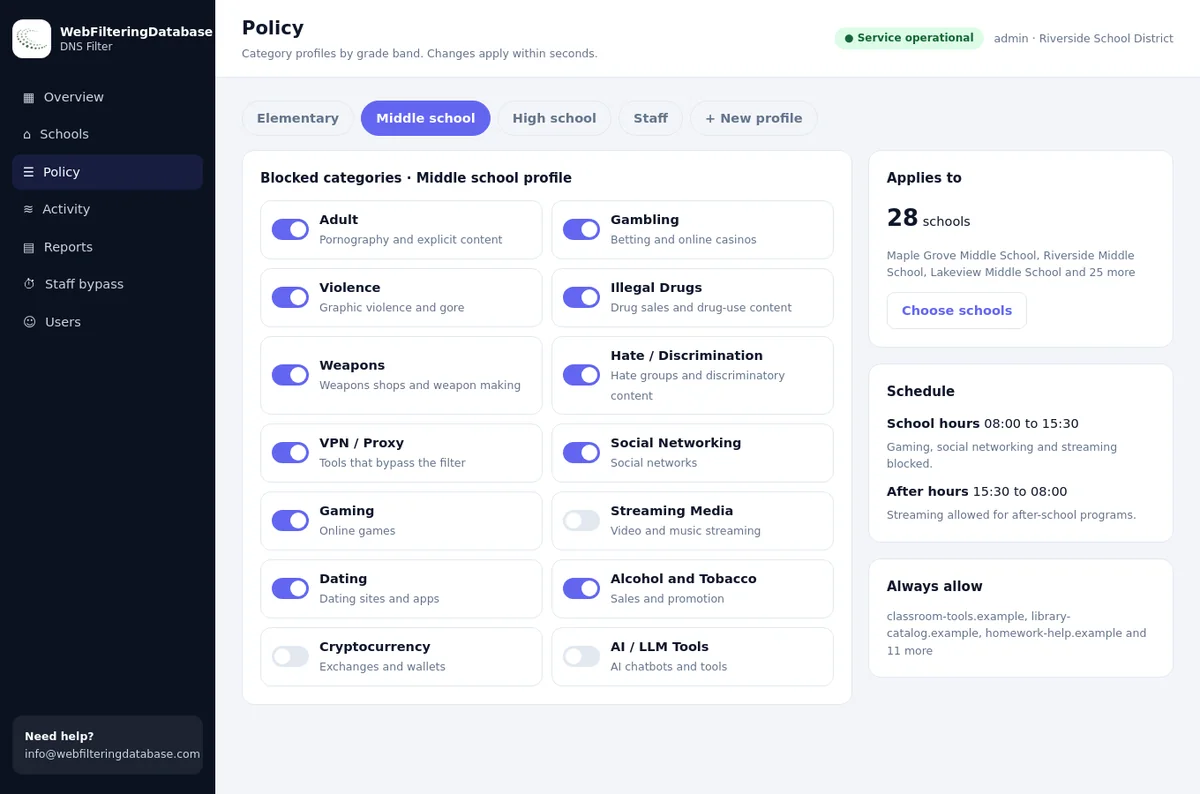
Browser policies are perfect for a handful of sites and exceptions. For gambling, adult, streaming or proxy sites by the thousand, our managed DNS filter blocks by category at the network, for Chrome, Edge and every other app on the device.
- 22 category switches instead of a hand-kept list.
- Covers every browser and app, not only the managed ones.
- Keep URLBlocklist for the few exceptions only a browser can do.
How URLBlocklist filters match
Each entry is a URL pattern. The most specific matching pattern decides, and an allow entry beats a block entry of the same specificity.
| Entry | What it blocks | Note |
|---|---|---|
| example.com | example.com and every sub-domain, over any scheme and path | The usual way to block a site |
| .example.com | Only the exact host example.com | The leading dot turns off sub-domain matching |
| https://example.com | Only the secure version of the site | Rarely what you want |
| example.com/games | That path and everything below it | Blocks part of a site, which a DNS filter cannot do |
| * | Everything | Combine with URLAllowlist for a kiosk that opens only listed sites |
A kiosk pattern: URLBlocklist set to "*" and URLAllowlist holding the few sites the kiosk may open. Because allow entries are more specific than "*", they win.
Deploying the policy
Use the tool you already manage devices with. The policy names and values are the same in each.
Windows with Group Policy
- Install the Chrome and Edge administrative templates on your domain controller.
- Open the "Block access to a list of URLs" setting for each browser.
- Add one pattern per line, link the policy to the right group of computers, and wait for the next refresh.
Intune or another device manager
- Create a settings profile for Chrome or Edge.
- Find the URL block list and allow list settings in the catalogue.
- Add your patterns and assign the profile to device groups.
Google Admin for Chrome
- Enrol the browsers in cloud management.
- Under the user and browser settings, find URL blocking.
- Enter blocked and allowed URLs for the right organisational unit.
A single Windows machine, for testing
- Add numbered string values under the policy key, one pattern each.
- Restart the browser and check its policy page.
HKLM\SOFTWARE\Policies\Google\Chrome\URLBlocklist
  "1" = "example.com"
HKLM\SOFTWARE\Policies\Microsoft\Edge\URLBlocklist
  "1" = "example.com"
On Macs the same policies come in a configuration profile, and on Linux in JSON files; see blocking websites on Linux for the folders.
Five sites admins add to browser block lists, and the category behind each
Real rows from our data. Each one has dozens of look-alikes in the same category, which is where a 1,000-entry list runs out.
| Site | Categories in our data | Category switch that covers its look-alikes |
|---|---|---|
| character.ai | AI / LLM Tools, Web-based Applications | AI / LLM Tools |
| shein.com | Shopping | Shopping is a category, not a switch; use an always-block entry |
| miniclip.com | Gaming | Gaming |
| epicgames.com | Gaming | Gaming |
| pluto.tv | Streaming Media | Streaming Media |
Closing the gaps around a browser block list
A block list in one browser is only one door. Six policies and settings close the others.
Private windows
URLBlocklist applies there too. To remove private browsing altogether:
IncognitoModeAvailability in Chrome, InPrivateModeAvailability in Edge.
Secure DNS
Stop the browser sending lookups past your network filter:
DnsOverHttpsMode set to off on office desktops.
VPN and proxy extensions
Block installs, or allow only approved extensions:
ExtensionInstallBlocklist with "*" plus an allow list.
Other browsers
A second browser ignores these policies. Use application control or your device manager to allow only managed browsers.
Guest and new profiles
Machine-level policies apply to every profile; check that the policy is set for the computer, not one user.
Phones and tablets
Browsers on phones you do not manage ignore your desktop policies. Only a network or device-level filter reaches them on your Wi-Fi.
For laptops that leave the office, set the browser's secure DNS to your filter's encrypted link instead of off; see filtering laptops away from the office.
Checking that the policy works
Four checks after every change. They take two minutes and catch most deployment mistakes, such as a policy linked to the wrong group of computers.
| Check | Where | What you should see |
|---|---|---|
| chrome://policy | Chrome | URLBlocklist listed with the status OK; use Reload policies after a change |
| edge://policy | Edge | The same, for Edge |
| A blocked site | Both browsers | "Blocked by your administrator" instead of the site |
| An allowed exception | Both browsers | Opens normally although a broader block exists |
Ready-made patterns for common requests
The requests admins get most often, written as block and allow entries.
| Request | URLBlocklist | URLAllowlist | Note |
|---|---|---|---|
| Kiosk: only two sites | * | intranet.example.com, mail.example.com | Add any helper domains the two sites load |
| Block a site, keep its help pages | example.com | help.example.com | The allow entry is more specific, so it wins |
| Block one section of a site | example.com/games | The rest of the site stays open | |
| Block one AI assistant inside a big domain | gemini.google.com | Search on google.com is untouched | |
| Block file transfer services | wetransfer.com and similar | Your approved service | A category rule catches the ones you did not list |
Keeping a list under 1,000 entries
The limit is generous for exceptions and tight for categories. Five habits keep a list useful.
List domains, not hosts
One entry for example.com replaces every www and app sub-domain.
Move categories to the network
Gambling, adult or proxy sites belong in a category filter; the browser list keeps the exceptions.
Split by group
Different organisational units or device groups can each have their own shorter list.
Remove dead entries
Sites close and domains lapse; prune the list every quarter.
Note the reason
A comment in your change record next to each entry makes the pruning safe.
Test after each change
Reload the policy page and try one blocked and one allowed site.
How the managed filter catches what a browser policy misses
Apps, unmanaged browsers and devices without your policies all still ask the network for names, and the managed DNS filter answers them with your category rules. Public encrypted DNS services are blocked by default, so a browser left on secure DNS cannot slip past it either.
Browser policy or network filter: what each does best
They are not rivals. Most well-run networks use both, each for the job it is good at.
Browser policy is best for
- Blocking part of a site, such as one path
- Kiosks that open only a few sites
- A short list of exceptions inside a blocked site
- Turning off private windows and risky extensions
A network DNS filter is best for
- Whole categories, with new sites added daily
- Every browser and app on every device
- Phones, tablets and guests you do not manage
- Reports on what was blocked, by category and network
Blocking with browser policy alone, or with the managed DNS filter underneath
The same office, with and without a network layer.
| Need | Browser policy alone | With the managed DNS filter |
|---|---|---|
| Block a category of sites | Type up to 1,000 entries by hand | One category switch |
| Cover other browsers and apps | Not covered | Every app that looks up a name |
| Phones and guest devices | Only if managed | Covered by the network setting |
| New sites in a category | Missed until someone adds them | Covered as they are categorized |
| Report on blocks | Browser reporting only | Activity and reports by category and network |
Blocking websites in Chrome and Edge: frequently asked questions
How do I block a website in Chrome for all users?
Set the URLBlocklist policy with the sites to block, using Group Policy, Intune, Google Admin or a configuration file. Chrome then shows a page saying the site is blocked by the administrator.
Does blocking example.com also block its sub-domains?
Yes. A filter of example.com matches the domain and all sub-domains. A leading dot, as in .example.com, turns off sub-domain matching so only that exact host is blocked.
How many sites can URLBlocklist hold?
Chrome and Edge both limit URLBlocklist and URLAllowlist to 1,000 entries each; further entries are ignored. For whole categories of sites, use a category filter at the network instead.
Does URLBlocklist work in Incognito and InPrivate windows?
Yes, the policy applies to private windows as well. You can also turn private browsing off with the IncognitoModeAvailability policy in Chrome or InPrivateModeAvailability in Edge.
How can I check that the policy is applied?
Open chrome://policy in Chrome or edge://policy in Edge, click to reload policies, and look for URLBlocklist with the status OK.
Can different groups of users have different block lists?
Yes. Assign separate policies to different organisational units in Group Policy or Google Admin, or to different device groups in Intune, and each group gets its own list.
Does URLBlocklist stop apps as well as websites?
No. It only controls what the browser opens. Desktop apps and other browsers are unaffected, which is why a network filter is a useful second layer.
Do Chrome and Edge share one policy?
No. Each browser reads its own policy, with its own administrative template and registry key, even though the names and values match. Set the list once for each browser you allow.
What happens to bookmarks of blocked sites?
They stay in the bookmarks bar, but opening one shows the blocked page. Removing the bookmarks centrally is optional and does not change the block itself.
Can users get around a browser block list?
They can use another browser, a VPN extension, or the browser's own secure DNS setting if you leave it open. Block those routes with policy and app controls, and add a network filter as a second layer.
The managed DNS filter costs $99 a month for one site, with several sites quoted together. Run a pilot alongside your existing browser policy and keep the policy for the exceptions it does best.
Keep the browser list short and the coverage wide
Tell us which browsers and devices you manage. We will set up a pilot that blocks by category at the network while your browser policy handles the exceptions.
Chrome and Google Admin are trademarks of Google LLC. Microsoft Edge, Intune and Windows are trademarks of Microsoft Corporation. They are named here only to identify the products discussed. Web Filtering Database is not affiliated with, sponsored or endorsed by these companies.