How to block websites on Linux: hosts file, DNS, dnsmasq and browser policies
Linux machines turn up in computer labs, call centres, kiosks, developer teams and on servers. This guide is for the admin who needs to block websites on them: five methods with the exact commands, what each one misses, and how to block whole categories instead of typing names.
Pick a method
Method 1: the hosts file
The oldest method, built into every Linux system. The machine answers a name from /etc/hosts before it asks any DNS server.
# edit with root rights
sudo nano /etc/hosts

# add one line per name
0.0.0.0 example.com
0.0.0.0 www.example.com
::      example.com
::      www.example.com
- One or two sites on one machine
- Works offline, no extra software
- No wildcards: every sub-domain needs its own line
- Large files slow name lookups down
- Anyone with root rights can remove the lines
Point Linux at a DNS filter and block whole categories
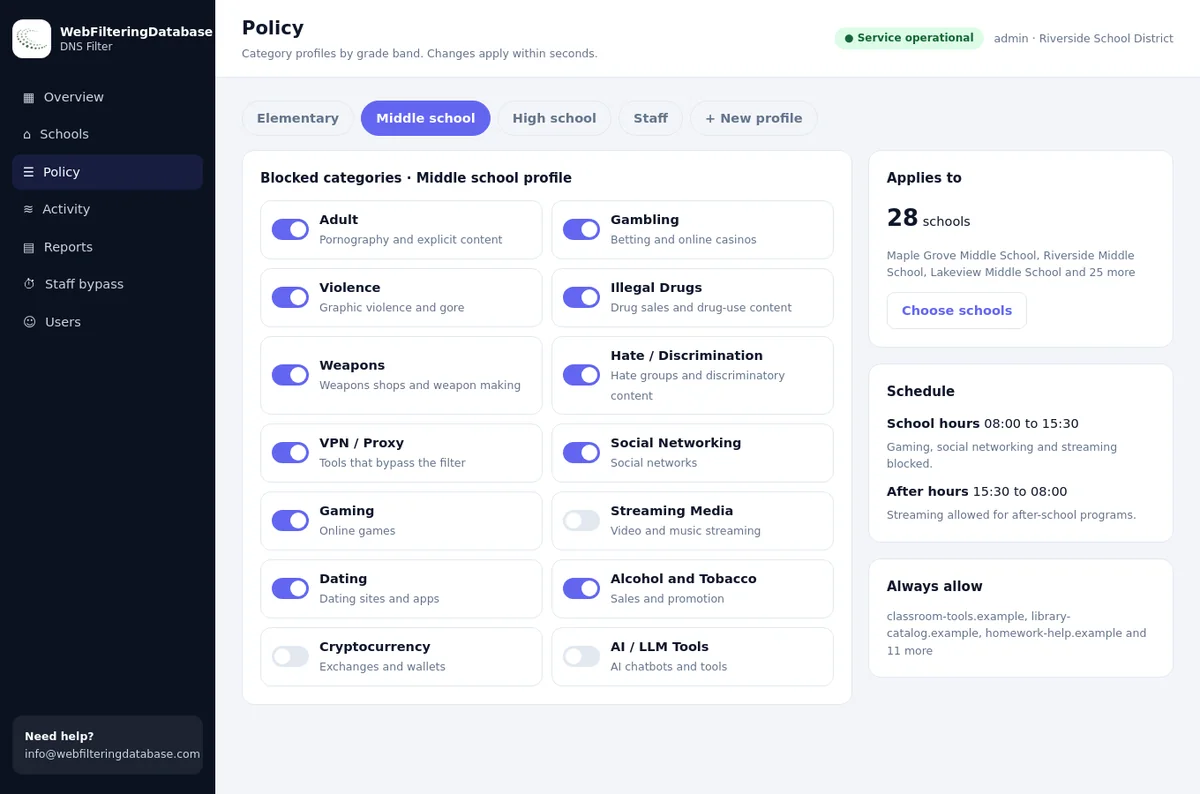
Every method on this page that uses lists only blocks the names you type. Pointing a machine, or the whole network, at our managed DNS filter blocks by category, so new gambling, game or proxy sites are covered without anyone editing a file.
- Works for Linux, Windows, Macs and phones on the same network.
- 22 category switches per site, plus your own lists.
- No package to install on the Linux machines.
Method 2: point the system DNS at a filter
Most desktop distributions manage DNS with NetworkManager, which hands it to systemd-resolved. Set the filter's address on the connection and tell it to ignore the DNS servers the network offers.
# NetworkManager: list connections, then set DNS
nmcli connection show
sudo nmcli connection modify "Office" ipv4.dns "FILTER_IP" ipv4.ignore-auto-dns yes
sudo nmcli connection modify "Office" ipv6.ignore-auto-dns yes
sudo nmcli connection up "Office"

# check what the system now uses
resolvectl status

# systemd-resolved without NetworkManager:
# /etc/systemd/resolved.conf
[Resolve]
DNS=FILTER_IP
Domains=~.
# then
sudo systemctl restart systemd-resolved
resolvectl flush-caches
- Every app on the machine, not only the browser
- Blocking by category when the DNS server is a category filter
- Laptops that move between networks, set per connection
- Set IPv6 too, or IPv6 DNS from the router can skip the filter
- Browsers with secure DNS switched on bypass the system setting
- Users with root rights can change it back
The IPv6 detail catches many people. See DNS filtering and IPv6 for why it matters and how to close the gap at the router.
Method 3: dnsmasq as a local blocking resolver
dnsmasq can run on the machine, or on a small server for the lab, and block a domain with all its sub-domains in one line. It forwards everything else to the DNS server you choose.
# /etc/dnsmasq.d/blocklist.conf
address=/example.com/0.0.0.0
address=/example.com/::
# the rule covers example.com and every sub-domain

# forward everything else
server=UPSTREAM_DNS_IP

# apply
sudo systemctl restart dnsmasq
- Wildcard blocking with short lists
- A lab server that every machine uses
- Combining with a category filter as the upstream
- On desktops, systemd-resolved may already use port 53
- Lists are still typed by hand unless you generate them
- One more service to keep patched
Five sites Linux lab admins are often asked to block
Real rows from our data. Blocking the category catches these and the many similar sites that never make it onto a typed list.
| Site | Categories in our data | Switch that covers it |
|---|---|---|
| crazygames.com | Gaming | Gaming |
| poki.com | Gaming | Gaming |
| primevideo.com | Streaming Media | Streaming Media |
| 9gag.com | Arts & Entertainment, Social Networking | Social Networking |
| chess.com | Gaming, Community Sites | Gaming, if you decide chess counts |
Method 4: browser policies on managed desktops
Chrome, Chromium and Firefox read managed policies from system folders on Linux. A block list there applies to every user of the machine, and users cannot change it without root rights.
# Chrome: /etc/opt/chrome/policies/managed/block.json
# Chromium: /etc/chromium/policies/managed/block.json
{
  "URLBlocklist": ["example.com", "example.org"],
  "URLAllowlist": ["intranet.example.com"]
}

# Firefox: /etc/firefox/policies/policies.json
{
  "policies": {
    "WebsiteFilter": {
      "Block": ["*://*.example.com/*"]
    }
  }
}
- Kiosks and shared desktops with one browser
- Allow-list exceptions inside a blocked site
- Blocking single paths as well as whole sites
- Only that browser; other apps are unaffected
- Chrome's block list is capped at 1,000 entries
- Check chrome://policy or about:policies after changes
Lock the browsers' own secure DNS setting at the same time, or the browser can bypass a DNS filter: see blocking websites in Chrome and Edge for the policies.
Method 5: a DNS filter for the whole network
When a lab or office has many machines, the cleanest place to filter is the network. Set the filter as the DNS server in the router's DHCP settings and every Linux machine that takes its settings automatically is covered, along with every other device.
Computer labs
One router setting instead of a change on every machine, and rules that survive a reinstall.
Kiosks and public terminals
Combine a network filter with a locked browser policy and no administrator rights.
Call centres
Block streaming and games on the floor network while support tools stay open.
Developer teams
Usually security-only rules; developers need package mirrors and code hosting open.
The five methods side by side
Most setups combine two: a network or system DNS filter for categories, and a browser policy or hosts entry for the odd exception.
| Method | Covers | Sub-domains | By category | Users can undo |
|---|---|---|---|---|
| Hosts file | The whole machine | One line each | No | With root rights |
| System DNS to a filter | The whole machine | Yes | Yes, with a category filter | With root rights |
| dnsmasq | Machine or lab | Yes | Only from generated lists | With root rights on that host |
| Browser policy | That browser | Yes | No | With root rights |
| Network DNS filter | Every device on the network | Yes | Yes | Not from the machine |
Firewall rules by IP address are missing on purpose. Large sites share addresses with thousands of others through content delivery networks, so blocking by address breaks unrelated sites and misses the target when its address changes.
Which combination fits your Linux setup
Five common situations and the pairing of methods that holds up in each. The main method does the heavy lifting; the second one covers the gap it leaves.
| Situation | Main method | Add | Why |
|---|---|---|---|
| School or university lab | Network DNS filter | Browser policy locking secure DNS | Students reinstall, switch browsers and share tips; the network rule survives all of it |
| Library or museum kiosk | Browser policy with an allow list | Network DNS filter | One browser, a short list of permitted sites, and a safety net for everything else |
| Call centre floor | Network DNS filter by category | Always-allow list for support tools | Streaming and games off, work tools guaranteed |
| Developer laptops | System DNS to a security-focused filter | Encrypted link for home working | Package mirrors and code hosting stay open, while risky categories such as remote access tools and proxies are blocked |
| Single home machine | Hosts file or system DNS | Browser policy | Simple, and enough for one user |
How the managed filter handles Linux machines that try to skip it
Public encrypted DNS services are blocked by default, so a browser's secure DNS setting cannot quietly route around the filter, and the dashboard gives router steps to send DNS only to the filter. Category changes apply in seconds to every machine at once.
Testing that a block works
Run these on the Linux machine after any change, and again after system updates.
- 1
Check the answer for a blocked name:
getent hosts example.comshows what the system resolves, including hosts file entries. - 2
Check which DNS server answers:
resolvectl query example.comon systems with systemd-resolved, ordig example.comwhere dig is installed. - 3
Clear the cache after a change:
resolvectl flush-caches, and restart the browser. - 4
Open the site in each installed browser. A browser policy shows its own block message; a DNS block shows a connection error or a block page.
Blocking websites on Linux machine by machine, or with the managed DNS filter
The same lab of twenty machines, handled two ways.
| Task | Machine by machine | Managed DNS filter |
|---|---|---|
| Block a new site | Edit hosts or dnsmasq on each machine | One always-block entry for the network |
| Block a whole category | Not possible with typed lists | One of 22 category switches |
| After a reinstall | Repeat the setup | Covered automatically by the router setting |
| Knowing what was blocked | Check each machine | Activity log and reports for the network |
| Other devices on the network | Need their own method | Covered by the same setting |
Blocking websites on Linux: frequently asked questions
How do I block a website on Linux?
The quickest way is a line such as 0.0.0.0 example.com in /etc/hosts, added with root rights. For many sites or many machines, point the system's DNS at a filtering DNS service or block by category in the browser's managed policy.
Does the hosts file block sub-domains?
No. The hosts file has no wildcards, so www.example.com and every other sub-domain need their own line. dnsmasq and DNS filters block a domain and its sub-domains with one rule.
How do I change DNS servers on Linux?
On systems with NetworkManager, use nmcli to set ipv4.dns and ipv6.dns for the connection and tell it to ignore automatic DNS. On systems using systemd-resolved directly, set DNS= in /etc/systemd/resolved.conf and restart the service.
Where do Chrome and Firefox read policies on Linux?
Chrome reads JSON files in /etc/opt/chrome/policies/managed, Chromium in /etc/chromium/policies/managed on many distributions, and Firefox reads /etc/firefox/policies/policies.json.
Can users get around blocks on Linux?
Anyone with root rights can undo local blocks. On shared machines, give users no administrator rights and also filter at the network, so a changed setting on one machine does not open everything.
Can I block websites for one user only on Linux?
Not easily with system-wide methods: the hosts file and DNS settings apply to the whole machine. Per-user rules need a browser setting managed per profile or a proxy that asks each user to sign in.
Can I block websites by category on Linux?
Yes, by pointing the machine's DNS, or the network's, at a filter that blocks by category. Local lists only block the names you type into them.
The managed DNS filter costs $99 a month for one site and covers every machine behind its router, Linux or not; several sites are quoted together. A pilot in one lab shows the category blocks working before you change anything else.
Stop editing block lists on every machine
Tell us how many Linux machines you run and where. We will set up a pilot that filters the whole lab or office by category from one router setting.
Linux is a trademark of Linus Torvalds. Chrome and Chromium are trademarks of Google LLC. Firefox is a trademark of the Mozilla Foundation. They are named here only to identify the software discussed. Web Filtering Database is not affiliated with, sponsored or endorsed by these owners.