How to block websites and apps on smart TVs and game consoles
Hotels with TVs in every room, schools with esports labs, libraries with gaming corners and offices with meeting-room screens all meet the same problem: these devices have no browser policies to manage and no agent to install. This guide shows how to filter them at the network, and how to stop them skipping the filter.
Smart TVs
Built-in apps and a basic browser, rarely any filtering settings.
Streaming sticks
App platforms that sometimes ignore the network's DNS.
Game consoles
Stores, streaming apps, browsers and online play.
Meeting-room screens
Casting and conferencing devices on shared networks.
Why the network is the right place to filter these devices
On a laptop you can choose between browser policies, agents and DNS. On a TV or a console, the network is usually the only control you have.
No management tools
Most TVs and consoles cannot be enrolled in device management, so there is nothing to push a policy to.
Apps, not browsers
Streaming and game apps never use a browser, so a browser block list would miss them entirely.
Every device asks for names
Every app still looks up the domains it connects to. A DNS filter answers those lookups by category.
Filter TVs, sticks and consoles from the router, by category
Point the network's DNS at our managed filter and every TV app, console store and built-in browser receives filtered answers. Give the device network its own profile, so streaming can stay open in a hotel room while adult content and VPN services do not.
- Streaming Media, Gaming and Adult as separate switches.
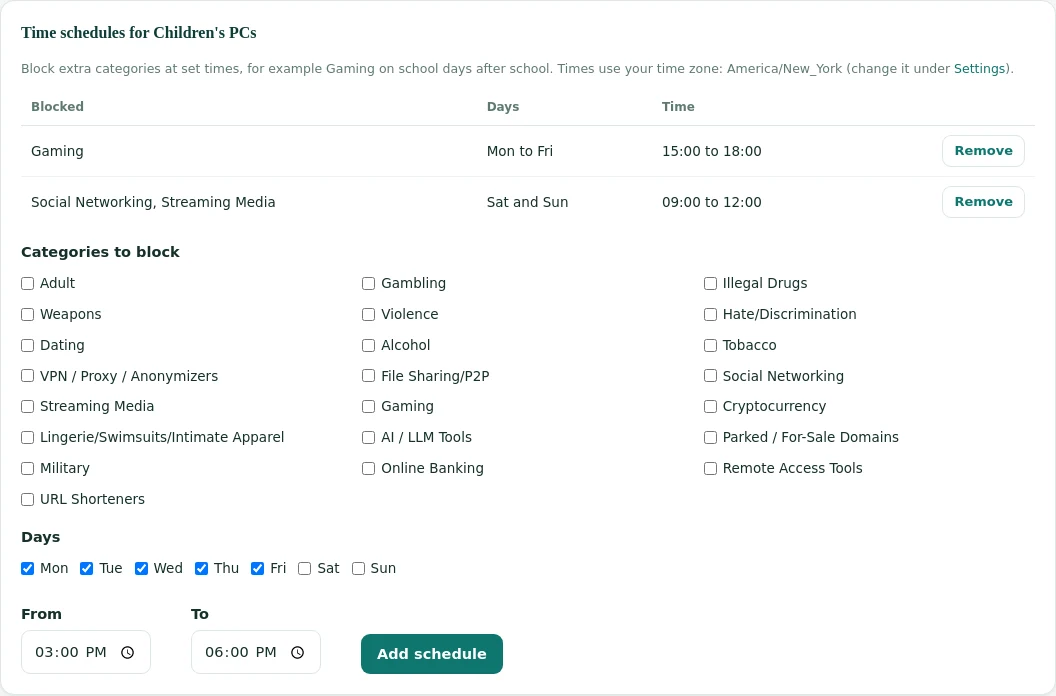
- Time schedules for play hours instead of permanent blocks.
- Public encrypted DNS services blocked, so devices cannot route around the filter.
DNS settings on the three big consoles
On a network that already hands out the filter, leave consoles on automatic. Use manual DNS only where you cannot change the router, and enter the filter's addresses.
PlayStation 5
- Settings, then Network, then Settings again.
- Set Up Internet Connection and select your network.
- Advanced Settings, DNS Settings: Manual, then enter the primary and secondary addresses.
Xbox Series X and S
- Settings, then General, then Network settings.
- Advanced settings, then DNS settings.
- Choose Manual and enter both addresses.
Nintendo Switch
- System Settings, then Internet, then Internet Settings.
- Select your network and Change Settings.
- DNS Settings: Manual, then enter both addresses.
Menu names change with system updates, but the DNS option has stayed in the network settings of each console for years. Use the main filter as primary and the backup filter as secondary.
Devices that ignore the network's DNS
Some streaming devices and apps use DNS servers of their own choosing instead of the one your router offers. Four router-side fixes, from gentlest to strictest:
Block other DNS servers
Allow outgoing DNS on port 53 only to the filter. Most devices that try their own servers then fall back to the network's DNS.
Redirect DNS to the filter
Many business routers and firewalls can redirect any outgoing port 53 traffic to the filter, so hard-coded servers receive filtered answers anyway.
Block encrypted DNS
Block port 853 for DNS over TLS. Encrypted DNS over the web port is handled by blocking known public resolvers, which the managed filter does by default.
Test and keep a fallback
A few devices refuse to work when their own DNS is blocked. Test each model, and put stubborn devices on a separate network if needed.
The same reasoning applies to IPv6, which many routers enable by default; see DNS filtering and IPv6.
Five services and the switches that decide them
Real rows from our data. A device network can keep some of these open and others closed with one switch each.
| Service | Categories in our data | Switch |
|---|---|---|
| netflix.com | Streaming Media | Streaming Media |
| disneyplus.com | Streaming Media | Streaming Media |
| twitch.tv | Streaming Media, Gaming | Streaming Media or Gaming |
| playstation.com | Gaming, Streaming Media | Gaming or Streaming Media |
| epicgames.com | Gaming | Gaming |
Profiles for the places these devices live
Put screens on their own network or VLAN and give it a profile that fits the room. Four common setups:
Hotel rooms
Streaming open, Adult and VPN / Proxy blocked, so guests can watch while the connection's reputation stays clean.
School esports labs
Gaming open during club hours by schedule, closed otherwise; social and streaming as the school decides.
Library gaming corners
Gaming open, Adult and Dating blocked; SafeSearch on for any browser the console offers.
Meeting rooms
Business only: Streaming and Gaming blocked to keep bandwidth for calls.
See profiles and networks for how each network gets its own rules, and time schedules for rules by hour.
What DNS filtering can and cannot do on these devices
Knowing the limits avoids promises the filter cannot keep, and helps you pick the right tool for each request from parents, guests or managers.
It can
- Block whole services by category, such as streaming or game stores
- Block adult sites in the TV or console browser
- Stop VPN apps from reaching their servers
- Apply rules by time of day
- Cover every device on the network, managed or not
It cannot
- Block one channel, video or game inside an allowed service
- Moderate in-game chat or voice
- Set age ratings for games and apps
- Limit screen time per person
- Filter devices on mobile data
For the "cannot" list, each console and TV platform has its own family settings with age ratings, purchase controls and play-time limits. Use them alongside the network filter.
How the managed filter handles gaming and streaming by schedule
Time schedules switch categories on and off by the hour in your time zone, so a lab can open Gaming after school and close it at night without anyone touching a console. Changes take effect in seconds for every device on that network.
Testing the filter on a TV or console
These devices have no command line, so test from the device itself and from a laptop on the same network.
| Test | How | Pass sign |
|---|---|---|
| Blocked app | Open a streaming or game app whose category is switched off | The app reports it cannot connect |
| Built-in browser | Open a blocked website in the TV or console browser | The block page or a connection error |
| Allowed service | Open a service that should work | It loads normally |
| Bypass check | On a laptop on the same network, look up a blocked name against a public DNS server | The lookup fails or returns the filter's answer if DNS is restricted |
| Activity | Check the filter's activity for the device network | Lookups from the TV or console appear |
Bandwidth: the other reason to filter screens
In hotels, dorms, offices and libraries, the complaint is often slow internet rather than unsuitable content. Streaming and game downloads are the usual cause.
Streaming in high quality
A few screens streaming high-definition video can fill a small building's connection.
Game downloads
Console games and updates are very large and often start in the evening on their own.
Schedules beat blocks
Closing Streaming Media during business hours and opening it at night keeps both staff and guests happy.
Measure first
The activity report shows which categories the device network uses most before you change anything.
Six mistakes with TVs and consoles
Each of these leaves screens unfiltered or breaks them for no reason.
Screens on the guest network
Guests and TVs then share rules; a separate device network gives each the right profile.
Manual DNS on every console
One router setting is easier to keep right than dozens of device settings.
Blocking Gaming to limit time
A schedule limits hours; a permanent block stops updates and online services too.
Ignoring IPv6
Consoles often prefer IPv6. If the router hands out other IPv6 DNS servers, the filter is skipped.
Not testing each model
Devices differ in how they treat DNS. Test one of each model before rolling out.
Forgetting casting
Phones casting to a TV stream through the phone's own connection rules, not the TV's.
Screens filtered device by device, or by the managed DNS filter
The same hotel floor or school lab, two ways.
| Task | Device by device | Managed DNS filter |
|---|---|---|
| Set up | Change DNS or family settings on every screen | One router setting for the device network |
| Block a category of apps | Not possible from most TVs | Streaming Media, Gaming or Adult switch |
| Play hours | Per console, per account | One schedule for the whole network |
| Devices that ignore DNS | Unfiltered | Router steps plus public encrypted DNS blocked |
| Seeing what screens use | Nothing to look at | Activity and reports for the device network |
Smart TVs and consoles: frequently asked questions
How do I block websites on a smart TV?
Filter at the network. Set your router to hand out a filtering DNS server, so the TV, its apps and its browser all receive filtered answers. Most TVs have no reliable way to block sites on the device itself.
Can I set DNS on a PlayStation, Xbox or Nintendo Switch?
Yes. Each console has a manual DNS option in its network settings. On a network that already hands out a filtering DNS server, leaving the console on automatic is simpler.
Why does my smart TV ignore the DNS filter?
Some streaming devices use their own DNS servers instead of the one the network offers. Blocking or redirecting other DNS traffic at the router makes most of them fall back to the network's DNS.
Will blocking the Gaming category stop console updates?
It can stop the console's store and online services. If the goal is to limit play time rather than stop gaming, a time schedule usually fits better than a permanent block.
Can DNS filtering block in-game chat or content inside an app?
No. DNS filtering decides by domain, so it can block a whole service but not one feature or one piece of content inside it. Use the console's or app's own family settings for that.
Do I need software on the TV or console?
No. DNS filtering works from the network, so nothing is installed on the screens. The device only needs to use the DNS server your router hands out, which is the default.
How do I filter TVs in hotel rooms or meeting rooms?
Put the TVs on their own network or VLAN with a profile that suits the room, for example adult content blocked and streaming allowed, so guest phones and staff devices keep their own rules.
The managed DNS filter costs $99 a month for one site, covering every screen on its networks, and several sites are quoted together. A pilot on one device network shows which apps each switch affects before you decide the rules.
Put every screen under the same sensible rules
Tell us where your TVs and consoles are and what each room needs. We will set up a pilot with a device network profile and a schedule if you want one.
PlayStation is a trademark of Sony Interactive Entertainment Inc. Xbox is a trademark of Microsoft Corporation. Nintendo Switch is a trademark of Nintendo. They are named here only to identify the products discussed. Web Filtering Database is not affiliated with, sponsored or endorsed by these companies.