Filtering profiles and networks: different rules for every part of your network
Staff, the public and children rarely need the same filter. Our hosted DNS filter separates the rules (profiles) from the places they apply (networks), so one account covers them all.
Who this guide is for
Anyone setting up the managed DNS filter for more than one group of users. A single office with one rule set can skip ahead to the limits section.
Patron PCs, public Wi-Fi, staff machines and a children's corner, each with its own rules.
Student devices, staff laptops and a guest network under one account and one policy record.
Each branch office as its own network, so reports and staff access stay per site.
Technicians who build the setup for a client and want the structure to be easy to explain.
Two building blocks: profile and network
Everything in the dashboard hangs on this split. Rules live in profiles. Addresses, links and staff access live in networks. Each network points at exactly one profile.
A profile is a set of rules
- Which of the 22 categories are blocked, switched on one by one
- SafeSearch on or off for the main search engines
- YouTube Restricted Mode: off, moderate or strict
- Time schedules that block extra categories at set hours
- A name you choose, such as Staff or Children's PCs
A network is a place or a group of devices
- One or more registered public internet addresses or ranges
- The profile it follows
- Its own private encrypted DNS link for single devices
- Its own staff page and PIN for adult research bypass
- Its own always allowed and always blocked lists
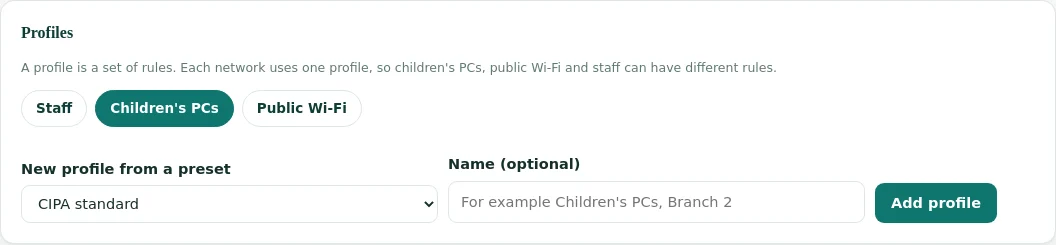
The three presets you start from
A new profile is copied from a preset, then you adjust it. Presets are a starting point, not a lock. Every switch can be changed afterwards.
| Preset | Blocked categories | SafeSearch | YouTube | Typical use |
|---|---|---|---|---|
| CIPA standard | Adult, VPN / Proxy / Anonymizers | Off | Off | Default for new accounts, patron and student networks |
| Children's PCs | Adult, VPN / Proxy / Anonymizers, Gambling, Dating | On | Strict | Children's area, younger students, family Wi-Fi |
| Staff | Adult, VPN / Proxy / Anonymizers | Off | Off | Staff Wi-Fi and back-office PCs |
The CIPA standard preset is deliberately short: adult content plus the tools used to get around a filter. You can switch on more web filtering categories such as gambling, gaming or social media whenever your policy asks for them.
How to set it up, step by step
A typical library or school setup takes four profiles at most and one network per address. These steps follow the dashboard in order.
Start with the Main network
Every account begins with a network called Main that uses the CIPA standard preset. It cannot be deleted, so it is a safe home for your primary address.
Create the profiles you need
Open Policy, pick a preset, give the profile a name and add it. Then switch categories, SafeSearch and YouTube Restricted Mode until the profile matches your written policy.
Add a network for each group
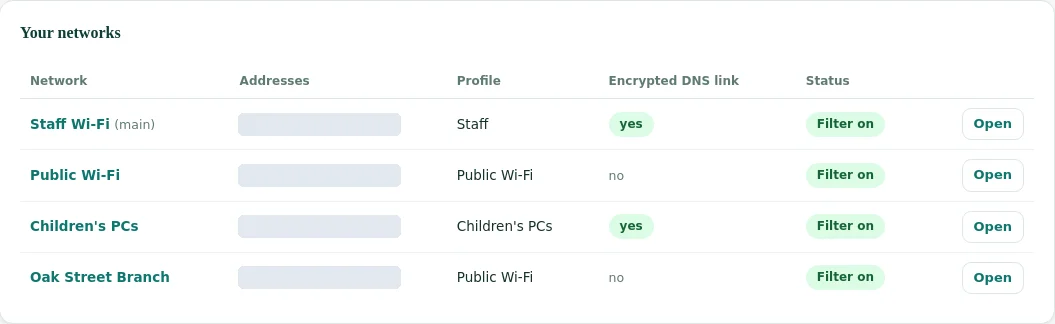
Open Networks, enter a name such as Public Wi-Fi and choose its profile. The new network gets its own staff page and PIN straight away.
Register the network's address
Open the network page from a device on that network and press Add my current address. Lookups from that address now follow the network's profile. Unknown addresses are refused by the filter.
Point the router at the filter
Set the router or firewall to hand out our DNS server as the only DNS server. The Networks page shows the address and short router steps for your account.
Use encrypted links where addresses are shared
If staff and public Wi-Fi leave the building through the same address, create an encrypted DNS link on the network that needs other rules and set it on those devices.
Test each network once
From a device on each network, open a site in a blocked category and one that should stay open. Then check the Activity page: every lookup shows the network that handled it.
How the filter picks a network for each lookup
The filter looks at where a lookup comes from, then applies that network's profile and lists. Two simple rules decide every case.
Most specific address wins
A single address beats a small range, and a small range beats a large one. A children's area with its own address inside the library's range follows the children's profile.
Encrypted links name their network
A device using a network's encrypted DNS link is matched to that network wherever it is, at home, in a cafe or on mobile data. The link carries the network, not the address.
What decides allow or block inside a network
Once the network is known, each lookup passes the same checks in the same order. The first check that applies decides.
Main search engines, common sign-in services and YouTube stay reachable even when a broad category they carry is blocked. Only Adult and VPN / Proxy rules, and your always blocked list, still apply to them. This stops a schedule from cutting off search or logins by accident.
Three common layouts
These patterns cover most libraries, schools and small offices we talk to. Names are examples; use whatever your staff will recognise.
Single library building
Mainfor staff PCs, Staff profilePublic Wi-Fi, CIPA standardChildren's PCs, Children's PCs profile
Public Wi-Fi and children's PCs need separate addresses, or children's PCs use their encrypted link.
Library system with branches
- One network per branch, named after the branch
- Branches share one or two profiles
- Each branch has its own staff page and PIN
A bypass at one branch never opens anything at another branch.
School with take-home laptops
Mainfor the school addressStudent laptopswith an encrypted DNS link- Same student profile on both
Laptops keep the student rules at home because the link travels with them.
Lists per account and per network
Lists sit on two levels, and both add up. Use the account level for anything that should be true everywhere.
| Where | Applies to | Good for |
|---|---|---|
| Policy page lists | Every network in the account | Catalogue, learning platforms, your own websites, a site you never want open |
| Network page lists | That network only, on top of the account lists | A site only staff need, or a game blocked only on children's PCs |
| Import from a file | Either level, your choice at upload | Moving allow and block lists over from your previous filter |
Each list holds up to 5,000 websites, and subdomains are always included. See importing allow and block lists for bulk uploads and custom policy management for planning list rules.
Router address or encrypted link: which one per network
Each network can be reached in two ways, and you can use both at once. The right choice depends on who owns the devices and where they are used.
| Question | Registered address (router) | Encrypted DNS link (device) |
|---|---|---|
| What it covers | Every device on that network, including guests' phones | Only the browser or device where the link is set |
| Setup effort | Once, on the router or firewall | Once per device or browser, or through your device management |
| Works off site | No, only on that network | Yes, anywhere the device has internet |
| Works when a provider redirects plain DNS | No | Yes, the link uses an encrypted connection |
| Best for | Public Wi-Fi, patron PCs, whole buildings | Take-home laptops, a few PCs that need other rules on a shared address |
| Can users switch it off | Not if the router forces DNS to the filter | Yes on unmanaged devices, so lock the setting with device management |
A short planning worksheet
Answer these before you open the dashboard. Most setup questions we get are settled by the answers, and they make the first call with us shorter.
Groups
- Which groups of users need different rules?
- Do children use any machine without an adult nearby?
- Do staff need adult research access, and where?
Addresses
- How many public internet addresses do you have?
- Are they fixed, or does your provider change them?
- Which Wi-Fi and wired networks share an address?
Policy
- Which categories does your written policy name?
- Are there hours when extra rules apply?
- Who should get the monthly report by email?
If two groups share one address and nobody can split it at the router, write that down. It is the one case where encrypted links on devices are the only way to give the groups different rules.
Naming tips
- Name networks after places people know: Oak Street Branch, Lab 2
- Name profiles after who they protect: Staff, Teens, Children's PCs
- Avoid dates in names; history already records when things changed
Keep the profile count low
- Three or four profiles cover most organizations
- Branch differences usually belong in network lists
- Fewer profiles make the printed policy record easier to read
Limits to know before you plan
Profiles and networks are flexible, but they sit on top of DNS filtering, which has fixed boundaries. Plan around these.
Two groups behind one public address look the same to the filter. Split them with different addresses, or give one group its encrypted DNS link.
DNS filtering sees the website name, never the full URL. A profile can block a whole site but not one page or one video on it.
On secure sites the browser shows a certificate warning before any block page. That is how browsers protect encrypted connections. Plain http sites show the block page directly.
The filter blocks public encrypted DNS services and VPN sites, but a device with a hard-coded resolver or an installed VPN needs locking at the router or with device management.
If your provider changes your public address, lookups are refused until you add the new one. Open the network page from that network and press the button again.
A profile change reaches the filter within seconds, but browsers may keep the last answer for about a minute. Test in a new private window.
For the wider picture see DNS filtering vs web filtering and encrypted DNS and web filtering. Website category filtering is one layer of online safety; it does not watch what people type, say or do.
What people on each network notice
Good separation is mostly invisible. Users notice the rules only when they hit one, so it helps to know what each group will see.
Normal browsing. Adult and bypass sites stay closed until someone with the PIN opens adult research for a set time.
Blocked sites show a block page or a browser warning. Everything else works as usual, with no app to install.
Safe results on search, YouTube in Restricted Mode, and extra categories closed, as the profile sets.
One dashboard, one Activity view with a network column, and reports per network or for all.
If a site is blocked by mistake, add it to the always allowed list of the right network or of the whole account. The change reaches the filter within seconds. The Activity page shows which network and which rule made each decision, so the fix is quick to target.
Housekeeping and history
Networks change over time. Branches close, Wi-Fi gets rebuilt, a lab moves. The dashboard keeps the record straight when that happens.
Deleting a network
- Its addresses stop matching at once
- Its encrypted link and staff page stop working
- Activity, reports and CSV exports keep its name, marked deleted
- The Main network cannot be deleted
Deleting a profile
- Only possible when no network uses it
- Its schedules are removed with it
- Move networks to another profile first
- Up to 20 profiles per account
Per-network history feeds straight into the monthly filtering reports, which break results down by network. Staff access per network is covered in the staff bypass PIN guide.
Questions about profiles and networks
What is the difference between a profile and a network?
A profile is a set of rules: blocked categories, SafeSearch, YouTube Restricted Mode and time schedules. A network is a place or group of devices with its addresses, encrypted link, staff page and lists. Each network uses one profile.
Can staff Wi-Fi and public Wi-Fi have different rules?
Yes, when they reach the internet from different public addresses. If they share one, give the devices that need other rules the encrypted DNS link of their own network.
Which network wins when address ranges overlap?
The most specific match. A single address beats a small range, and a small range beats a larger one.
How many profiles and networks can one account have?
Up to 20 profiles and up to 50 networks per customer account. Contact us if you need more.
Can one profile serve several networks?
Yes. Ten branches can share one profile. A change to that profile reaches all ten within seconds, while each branch keeps its own staff page and lists.
What happens when I delete a network?
Its addresses, encrypted link and staff page stop working at once. History keeps the network's name marked as deleted, so reports stay readable.
Do encrypted DNS links work on phones and Macs?
The network page shows setup steps for common browsers and a configuration profile for Mac. Ask us about other devices before you plan a rollout.
How fast does a profile change apply?
Within a few seconds on the filter. Browsers may keep an earlier answer for about a minute.
Can I move a network to another profile later?
Yes. Open the network page, choose another profile and save. The network follows the new rules within seconds, and its staff page, PIN and lists stay as they were.
Does a network need an address if it only uses the encrypted link?
No. A network can live on its encrypted DNS link alone, for example for take-home laptops. It still has its own profile, lists, staff page and report lines.
Plan your networks with us
Tell us how many buildings, Wi-Fi networks and public addresses you have. We will suggest a profile and network layout before you switch anything over.
More managed filter guides
YouTube is a trademark of Google LLC. Mac is a trademark of Apple Inc. They are used here only to identify the products discussed. Web Filtering Database is not affiliated with, sponsored or endorsed by these companies.