Import allow and block lists from your old web filter
Years of hand-made exceptions should not be lost when you switch filters. Upload the lists you already have into our managed DNS filter, check a preview, and save them to one network or to all of them.
Who this is for
Anyone moving to the hosted filter from another product, a router block list or a home-grown DNS setup. It is also the quickest way to add a long list at once.
Libraries and schools switching filters
Keep the learning sites, catalogues and local services your staff unblocked over the years, and the extra blocks they added.
IT providers onboarding a client
Bring over the client's existing exceptions in one upload per network, instead of retyping them line by line.
Teams with their own DNS block lists
Hosts files and Adblock-style lists from a home-built resolver load directly; comments and empty lines are skipped.
File formats the importer reads
Most filters can export at least one of these. If yours uses another layout, a quick save as plain text or CSV usually does the job.
One website per line
The simplest form. URLs are cut to the website name.
# learning sites
khanacademy.org
https://www.example.edu/maths
*.library-app.example
Hosts file
Address then one or more names. Local entries such as localhost are ignored.
0.0.0.0 ads.example.net
127.0.0.1 tracker.example.com
0.0.0.0 a.example b.example
Adblock rules
Domain rules only. Rules with paths, wildcards or most options are listed as invalid.
! old block list
||casino.example^
||proxy.example^$important
@@||allowed.example^
CSV
Needs a column named domain, domains, host, hostname, fqdn, website, site, url or name.
domain,reason,added
pbskids.org,learning,2024
scratch.mit.edu,learning,2023
In the Adblock sample, the line starting with @@ is an exception rule, not a block. The preview lists it as invalid for a block list, so you can add that website to the always allowed list instead.
How an import works, step by step
The importer is on its own page, Import lists, and on every network page. It always runs in three stages, and the middle one is where you decide.
Upload
- Choose the file
- Pick Always allowed or Always blocked
- Pick all networks or one network
- Press Show preview
Preview
- See how the file was read
- Check valid, duplicate, invalid and skipped counts
- Read the first entries and sample problem lines
- See any conflict with allowed lists
Save or cancel
- Save adds only the new, valid websites
- Cancel leaves everything as it was
- Saved entries apply within a few seconds
- Re-upload if the preview expires
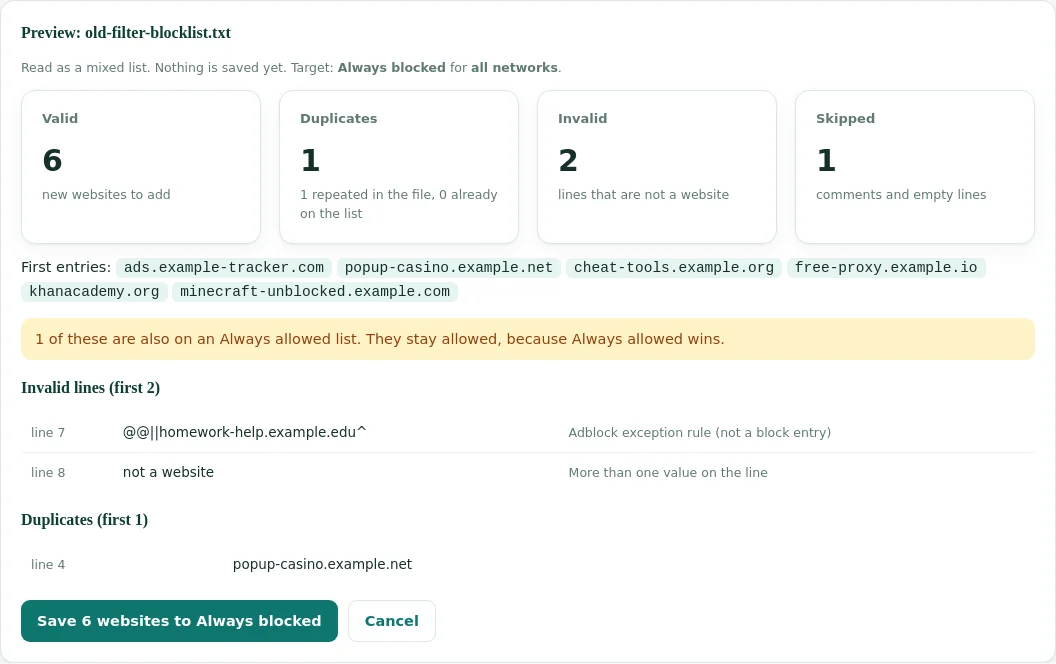
Reading the preview
Four numbers tell you whether the file is what you expected. If any of them surprise you, cancel, fix the file and upload again.
Entries that will be added. Websites already on the target list are not counted here.
Split into repeats inside the file and entries already on the list. Neither is added twice.
Lines that could not be read as a website, with the line number and the reason for the first few.
Empty lines and comments starting with #, ! or similar. They are expected and harmless.
| Line in your file | Read as |
|---|---|
https://www.example.org/page?id=3 | example.org with www, path dropped |
*.example.net | example.net and all subdomains |
Example.COM. | example.com |
example.com:8080 | example.com |
192.0.2.10 | Invalid: addresses are not websites |
||example.org/ads/* | Invalid: Adblock rule with a path |
[email protected] | Invalid: email address |
Website names in other scripts are converted to their standard internet form automatically, so international domains import like any other.
The preview also names the format it detected, such as hosts file, Adblock list, CSV file or mixed list. If the detected format is not what you exported, the file probably holds more than you think. Open it in a text editor and check the first lines before you save.
Up to ten sample lines are shown for invalid entries and for duplicates, each with its line number in your file. That is usually enough to spot a pattern, such as a notes column that slipped into the website column.
Where imported entries go
You choose the target at upload time. The two levels add up, so an entry on the account list applies everywhere, and a network list adds to it for that network only.
| Target | Applies to | Typical content |
|---|---|---|
| Always allowed, all networks | Every network in the account | Learning platforms, catalogue, e-book apps, your own websites, local government services |
| Always blocked, all networks | Every network in the account | Sites your policy names individually, local nuisance sites, old manual blocks |
| Always allowed, one network | That network only | Staff tools that patrons do not need, a game a teacher uses with one class |
| Always blocked, one network | That network only | Extra blocks for children's PCs or a public kiosk |
The order of rules is fixed: always allowed wins over everything, then always blocked, then categories. Read more in profiles and networks and in our guide to custom policy management.
Tips for a clean migration
Old lists collect clutter. A little cleaning before the upload gives you shorter lists that are easier to review next year.
Drop blocks the categories already cover
Many old block lists repeat what category filtering does anyway. Check a few entries with the domain lookup before importing hundreds of them.
Import allow lists first
Allowed entries protect learning sites from day one. Then the preview of the block list flags any conflict with them.
Use the parent website
An entry covers all subdomains, so one line for example.org is enough. You do not need www and m variants.
Split by network when rules differ
If the old filter had separate lists for staff and public, upload each to its own network rather than merging them.
Keep a copy of the source file
Store the exported file with your onboarding notes. It records what came over and when.
Spot-check after saving
Open two or three imported sites from a device on the network and check the Activity page for the result.
Typing entries or importing a file
Both roads lead to the same lists. The Policy page and each network page also have plain text boxes, one website per line, for quick edits.
| Need | Better tool |
|---|---|
| Add one or two websites now | Text box on Policy or the network page |
| Move dozens or thousands of entries | Import with preview |
| Remove or reorder entries | Text box, then Save lists |
| Check a messy export for problems | Import preview, then Cancel |
| Fix a single wrong block reported by staff | Text box under Always allowed |
Preview as a dry run
Running a preview and pressing Cancel changes nothing. It is a quick way to see how many real websites an old export contains before you decide what to keep.
Messages you may see, and what they mean
The importer explains problems in plain words. These are the ones people meet most often.
| Message | Meaning | Fix |
|---|---|---|
| The CSV file needs a column named domain | No column header matched, and the first column did not hold websites | Rename the column header to domain and upload again |
| This looks like a binary file | An office document or archive was uploaded | Save as CSV or plain text first |
| The file is larger than 2 MB | The file is over the size limit | Split it into parts, or contact us |
| A list can hold up to 5,000 websites | The import would push the list over its limit | Prune the list, use per-network lists, or contact us |
| More than one value on the line | A line has spaces and is not a hosts entry | Put one website per line |
| This preview has expired | The preview is older than about an hour | Upload the file again |
What happens to rules that do not translate
Your old product may have had rule types that a DNS filter cannot express. The preview shows these as invalid lines instead of guessing.
| Old rule type | What the importer does | What you can do instead |
|---|---|---|
| Path or page rule, such as a single video page | Keeps the website name, drops the path in plain lists; marks Adblock path rules invalid | Decide whether the whole site should be allowed or blocked |
| Keyword rule, such as a word in the address | Invalid: not a website | Use categories; a keyword cannot be checked at DNS level |
| Exception rule in Adblock form | Invalid for a block list | Add the website to Always allowed |
| IP address or range | Invalid: addresses are not websites | Block it at your firewall if needed |
| User or group based rule | Not present in list files | Recreate it as a network with its own profile |
| Time-limited rule | Not present in list files | Recreate it as a time schedule |
A worked example: a library moving three lists
A library leaves an older filter with three exported files. This is how the move goes, with sample numbers for illustration.
Allowed sites, CSV
- Column named website, 412 rows
- Preview: 389 valid, 18 duplicates, 5 invalid
- Invalid rows were notes typed into the website column
- Saved to Always allowed, all networks
Staff blocks, plain text
- One website per line with comments
- Preview: 64 valid, 40 skipped comments
- Two entries conflict with File 1 and stay allowed
- Saved to Always blocked, all networks
Kids' extra blocks, hosts
- Hosts format from a router
- Preview: 120 valid, 3 local entries skipped
- Target set to the Children's PCs network
- Saved to Always blocked for that network only
Total time was about fifteen minutes. Afterwards the IT contact opened the Policy page to read through the allowed list once, and removed a handful of sites that no longer exist.
A simple migration timeline
Moving lists is one part of switching filters. This order keeps users protected the whole time and avoids a day of surprise blocks.
Export from the old filter
Export allow and block lists separately, and per group if the old product had groups. Keep the old filter running for now.
Build networks and profiles
Create the networks and profiles first, so each list has a home. See the profiles and networks guide.
Import and review
Upload allow lists, then block lists, reading each preview. Fix and re-upload anything that looks wrong.
Test with one device
Point a single device at the new filter with its encrypted link and browse the sites staff care about most.
Switch the router
Change the network's DNS to the new filter during a quiet hour. Watch the Activity page for the first blocks.
Retire the old filter
After a week without surprises, switch the old product off. Keep its export files with your records.
Keeping lists healthy after the import
Imported lists become your lists. A short routine keeps them small enough that anyone can read them in a few minutes.
The monthly report's most blocked websites show if an allowed site is missing or a block is catching too much.
Collect sites teachers or librarians had to request, and add the ones that should stay open.
Remove dead websites and blocks that the categories now cover on their own.
Keep a short note of why each unusual entry exists, outside the dashboard, with your policy papers.
A list of a few hundred well-chosen entries is easier to defend in a policy review than thousands of copied lines nobody remembers adding. Short lists also make wrong blocks quicker to trace, for you and for anyone who takes over the job later.
Limits to plan for
The importer is built for exception lists, not for replacing category data. These limits keep lists fast and reviewable.
Size limits
Up to 2 MB and 100,000 lines per file, and up to 5,000 websites per list. Larger needs are handled with us directly.
Website names only
DNS filtering never sees full URLs, so an import cannot allow or block one page while leaving the rest of a site alone.
Preview expires
A preview is kept for about an hour. After that, upload the file again before saving.
Text files only
Spreadsheets must be saved as CSV first. Binary files such as office documents are refused.
HTTPS block pages
An imported block on a secure site shows the browser certificate warning before any block page, as with every DNS filter.
Removing entries
Imports only add. To remove entries, edit the list on the Policy page or the network page and save.
Need lists in other formats for a product of your own? Licensed customers of the category database can export hosts, RPZ and similar formats, described in blocklist formats.
Import questions
Which file formats can I import?
Plain text with one website per line, hosts files, Adblock-style domain rules and CSV files with a column named domain, host, hostname, website or url.
Is anything saved before I confirm?
No. The preview shows the counts and samples. Nothing changes until you press Save.
How large can a list be?
Up to 2 MB and 100,000 lines per file, and up to 5,000 websites per list. Contact us if your lists are larger.
Are subdomains included?
Yes. example.com covers www.example.com and every other subdomain. Wildcards such as *.example.com are read as example.com.
What happens to full URLs in my old list?
They are cut down to the website name. The whole site is then allowed or blocked.
What if a website is on both lists?
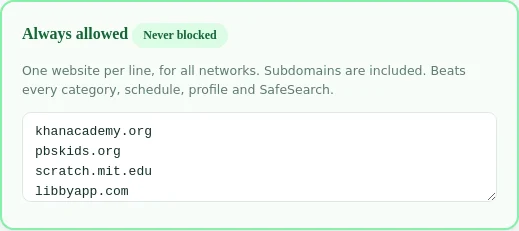
Always allowed wins. The preview warns you when imported block entries are already allowed.
Can I import into one network only?
Yes. Choose the network in the upload form, or start the import from that network's page.
Does an import replace my current list?
No. Imports only add new entries. Websites already on the list stay, and duplicates are counted in the preview rather than added twice.
How quickly do imported entries take effect?
Within a few seconds of pressing Save. A browser that saw an earlier answer may need about a minute before it notices the change.
Can I import a list of website categories?
No. Categories are switched on in each profile on the Policy page. The importer takes website names only.
Who can run an import?
Any dashboard user of your account. Imports go only into your own account's lists, never into another customer's.
Can you import the lists for us?
Yes. Send the export from your old filter during onboarding and we will load it with you. Most such requests carry no extra charge.
Switching filters? Bring your lists
Tell us what you run today and send a sample export. We will check how it imports before you move a single network.
Related: staff bypass PIN · monthly filtering reports · domains to block