Time schedules: block categories only at the hours that matter
Some rules only make sense part of the day. Gaming after school, streaming during opening hours, social media on weekend mornings. Time schedules in our managed DNS filter switch extra categories on for set days and hours, then off again by themselves.
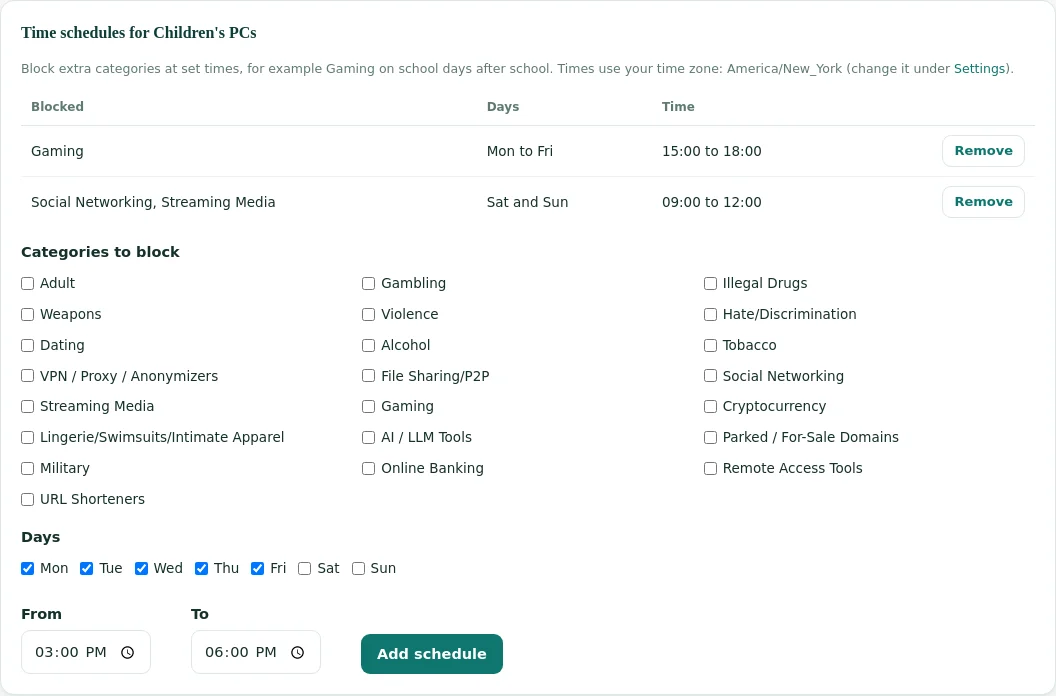
Example: Children's PCs
- All dayAdult, VPN / Proxy, Gambling, Dating
- Mon to Fri, 15:00 to 18:00+ Gaming
- Sat and Sun, 09:00 to 12:00+ Social Networking, Streaming Media
- Time zoneYour account setting
Who uses time schedules
Schedules suit any place where the right rule depends on the clock. They are part of each profile, so different groups can follow different timetables.
Libraries
Keep gaming sites closed on children's PCs during homework hours, while the teen area follows its own timetable.
Schools
Close streaming and social networking during lessons on student networks and leave staff networks untouched.
Offices
Hold back streaming during working hours to protect a small internet line, and open it at lunchtime and after hours.
How a schedule works
A schedule is a small rule inside a profile: some categories, some days, a start and an end time. While the window is open, those categories are blocked in addition to the profile's all-day list.
It only adds
A schedule never opens anything. Categories that the profile blocks all day stay blocked around the clock.
Your local time
Windows follow the time zone set for your account under Settings, not the server's clock or the visitor's device.
Checked on every lookup
Each lookup is compared with the current time, so a window starts and ends on the minute without anyone pressing a button.
What the example week looks like
The Children's PCs example above, drawn as a week. Grey means only the all-day rules apply. Coloured cells show when a schedule adds categories.
Setting up a schedule, step by step
Schedules sit at the bottom of each profile on the Policy page. Set your time zone first, then add as many windows as the profile needs.
Check the time zone
Open Settings and pick your time zone. It drives schedules and monthly reports.
Open the profile
Go to Policy and choose the profile tab, for example Children's PCs.
Tick categories
Under Time schedules, tick the categories to block during the window.
Pick days and times
Weekdays are ticked by default. Set From and To, then press Add schedule.
Confirm and test
The schedule appears in the table above the form. During the window, open a site in that category to check.
Ready-made ideas you can copy
These are starting points that fit common policies. Adjust days and hours to your opening times and your own rules.
- Profile
- Children's PCs
- Categories
- Gaming
- Days
- Mon to Fri
- Time
- 15:00 to 18:00
Keeps game sites closed while children are meant to work on school tasks. Weekends stay as the base profile sets them.
- Profile
- Students
- Categories
- Streaming Media, Social Networking, Gaming
- Days
- Mon to Fri
- Time
- 08:00 to 15:00
Close distractions during the school day. After school the student network falls back to the base profile.
- Profile
- Public Wi-Fi
- Categories
- Streaming Media, File Sharing/P2P
- Days
- Every day
- Time
- 10:00 to 17:00
Large video and download sites are held back when the building is busiest, so catalogue and email stay quick.
- Profile
- Family or residence Wi-Fi
- Categories
- Gaming, Social Networking
- Days
- Sun to Thu
- Time
- 22:00 to 06:00
An end time earlier than the start runs past midnight. The window belongs to the evening it starts on.
Browse the full web filtering category list to see what each category covers, for example gaming, streaming and social media.
How schedules combine with other rules
A schedule is one input among several. The filter checks rules in a fixed order, so you can predict the result of any combination.
| Situation | Result during the window | Why |
|---|---|---|
| A site is on the always allowed list | Allowed | Always allowed beats every category, schedule and profile |
| A site is on the always blocked list | Blocked, all day | Lists apply regardless of time |
| Category blocked all day and also in a schedule | Blocked, all day | Schedules only add; the all-day rule still applies outside the window |
| Main search engine or sign-in page carries the scheduled category | Allowed | Essential services ignore broad categories, except Adult and VPN / Proxy |
| Staff start an adult bypass during the window | Scheduled categories stay blocked | A bypass opens adult categories only, on one network |
| Two schedules overlap | Both sets of categories blocked | Overlapping windows add up |
The essential-services rule matters for broad categories. Some large platforms carry several labels, and a schedule that blocks streaming should not cut off search or logins. If you do want such a service closed at all times, put it on the always blocked list.
Which categories make sense on a timer
Not every category belongs in a schedule. Anything your policy says must never be reachable belongs in the profile's all-day list. Timers fit categories that are fine at some hours and a distraction or a load problem at others.
| Category | Good on a timer? | Notes |
|---|---|---|
| Gaming | Yes | The classic homework or work-hours rule. Educational game sites may carry the label too, so add any you rely on to always allowed. |
| Streaming Media | Yes | Useful for protecting bandwidth at busy times. YouTube itself stays reachable; use Restricted Mode or the always blocked list for it. |
| Social Networking | Yes | Common for lesson time. Expect some messaging features inside large platforms to be affected only when their own domains carry the label. |
| File Sharing/P2P | Often | Fits shared public lines during opening hours. Many sites block it all day instead. |
| AI / LLM Tools | Sometimes | Some schools close chat tools during exams or lessons and open them for supervised sessions. |
| Cryptocurrency, Online Banking | Rarely | Usually a fixed decision per network rather than a time rule. |
| Adult, VPN / Proxy / Anonymizers | No | Keep these in the all-day list. The CIPA standard preset already blocks both. |
| Gambling, Dating | No | Block all day where your policy names them, as the Children's PCs preset does. |
Schedules compared with other ways to time-limit browsing
There are other places to put a time rule. Each has a different reach, and a network schedule is the one that needs no software on the devices.
Network schedule in the filter
Covers every device on the network, including phones and guest laptops. Works by website category. No device software. Cannot count minutes per person.
Screen time on the device
Counts usage per person or per app, but only on devices you manage. Guest and patron devices are out of reach.
Turning Wi-Fi off
Simple and total, but it also stops learning platforms, catalogues and email. A category schedule keeps the useful parts open.
Many places combine a network schedule with device settings on the machines they own. The filter handles the shared network; device tools handle per-person limits.
Common mistakes and quick fixes
These come up when people first use timed rules. Each one is fixed in a minute from the dashboard.
"The schedule did nothing"
The schedule was added to a profile no network uses. Check the Used by label at the top of the profile, or move the network to that profile.
"It started an hour late"
The account time zone is wrong, or set to UTC. Fix it under Settings; schedules follow the change at once.
"A learning game is blocked"
The game site carries the Gaming label. Add it to always allowed for that network, and it stays open during the window.
"Weekend rule runs on Friday"
A window past midnight belongs to its start day. A Friday 22:00 to 06:00 window runs into Saturday morning, as designed.
"Staff PIN did not help"
The staff bypass opens adult categories only. To open a scheduled category for an event, remove the schedule and add it back afterwards.
"Still blocked after the end"
The browser kept the earlier answer. Wait about a minute or open a new private window, then try again.
Before you rely on a schedule
A short checklist. Most surprises with timed rules come from one of these points, not from the filter itself.
- The account time zone matches the building, not head office
- The schedule is in the profile the network actually uses
- Days are ticked correctly; weekdays are ticked by default
- Windows past midnight start on the evening day you ticked
- Sites that must stay open are on the always allowed list
- Staff know a PIN bypass does not lift scheduled categories
- You tested once inside a window, in a new private browser window
- Users were told about the timetable, so blocks are not reported as faults
Limits of time-based DNS filtering
Schedules inherit the strengths and the boundaries of DNS filtering. Keep these in mind when you write your policy.
Open pages may keep working
A page loaded before the window starts can stay on screen, and a browser may reuse an earlier answer for about a minute. New visits are blocked.
Whole sites, not pages
DNS filtering sees the website name only, never the full URL. A schedule cannot close one channel or one page inside a site.
HTTPS warning
When a secure site is blocked, browsers show a certificate warning first. That is expected for any DNS filter. Plain http sites show the block page straight away.
Apps with their own connections
Some apps keep a connection open for a while. They are cut off when they next look up their servers, which can be a few minutes later.
One time zone per account
Branches in different time zones need separate accounts, or schedules written in the account's time zone.
Category coverage
A schedule is as good as the category data behind it. New sites are categorized continually, and your lists cover anything you want handled by hand.
Read more on DNS filtering vs web filtering. Time rules decide which websites open; they do not monitor screen time, messages or behaviour. Pair them with your normal supervision and safeguarding process.
Schedules in reports and records
When a scheduled category blocks a lookup, the Activity page and the reports count it under that category, like any other block.
Activity
Each lookup shows its time in your time zone, the network, the decision and the category, so you can see a schedule switching on.
Monthly reports
Blocks by category and the most blocked websites per month, per network or for all networks. See monthly filtering reports.
Policy record
A printable one-page record of what you block and your bypass rules, ready for a board or an annual review.
A worked example: one day at a branch library
A branch with three networks, Staff Wi-Fi, Public Wi-Fi and Children's PCs, and one schedule on the children's profile. This is what the filter does through a normal Tuesday.
09:30, doors open
All three networks follow their base profiles. Adult and VPN sites are closed everywhere; the children's PCs also close gambling and dating and force SafeSearch.
11:00, adult research
A patron needs a blocked health site. A librarian opens adult content on Public Wi-Fi for 30 minutes with the staff PIN. Children's PCs are not affected.
15:00, homework club
The weekday schedule starts. Gaming sites close on the children's PCs only. Staff and public Wi-Fi carry on as before.
15:20, a teacher's game
A class uses a maths game site that carries the Gaming label. A staff member adds it to always allowed for Children's PCs; it opens within seconds.
18:00, schedule ends
Gaming opens again on the children's PCs. Nobody presses anything. The base rules carry on overnight.
1st of next month
The monthly report shows Gaming blocks on the Children's PCs line and the one staff bypass, with time and network.
Time schedule questions
Can a time schedule unblock a category?
No. A schedule only adds blocked categories for its hours. Anything the profile blocks all day stays blocked.
Which time zone do schedules use?
The time zone set for your account under Settings. One account uses one time zone for all schedules and monthly reports.
Can a schedule run past midnight?
Yes. Enter an end time earlier than the start, such as 22:00 to 06:00. The window belongs to the day it starts on.
How many schedules can a profile have?
Up to 20 per profile, each with several categories and several days.
Does a schedule affect search engines or sign-in pages?
No. Main search engines, common sign-in services and YouTube stay reachable. Only Adult and VPN / Proxy rules and your always blocked list apply to them.
Do schedules apply to devices using the encrypted DNS link?
Yes. Those devices follow their network's profile, schedules included, wherever they are.
Can different networks follow different timetables?
Yes. Schedules belong to profiles. Give each network the profile with the timetable it needs, as described in profiles and networks.
Can one schedule cover several categories?
Yes. Tick as many categories as you like in one schedule. Use separate schedules when different categories need different hours.
Do schedules change what staff see on the staff page?
No. The staff page only starts and ends the adult research bypass for its network. Scheduled categories are not part of it.
Is there a minimum window length?
Start and end must differ. Windows are set in minutes, so a short break such as 12:00 to 12:45 works the same way as a full afternoon.
Will users see why a site is blocked during a window?
On plain http sites the block page names the website and the reason category. On secure sites the browser shows its warning first; see the branded block page guide.
How do I pause a schedule for a day?
Remove it and add it again later; it takes a few seconds. Holiday calendars are not built in, so plan school breaks with that in mind. A second profile without the schedule is another option: switch the network to it for the holiday and back afterwards.
Want a timetable set up for you?
Send us your opening hours and the rules you want at each time. We set up the profiles and schedules with you during onboarding.
Talk to usManaged DNS filter overviewRelated guides: SafeSearch and YouTube Restricted Mode · staff bypass PIN · blocking online games at work
YouTube is a trademark of Google LLC. It is used here only to identify the service discussed. Web Filtering Database is not affiliated with, sponsored or endorsed by its owner.