A branded block page: your name, your words, your help desk
When our managed DNS filter blocks a website, people see a page that explains what happened. Add your logo, a short message and how to reach you, so a block reads as your policy and not as a broken internet.
Who sets up a branded block page
Any customer of the hosted filter can brand the page. It matters most where many people share a network and need to know who to ask.
Public libraries
Patrons see the library's name and the desk to ask, instead of a generic message that looks like a fault.
Schools
Students and visitors see the school's name and the right contact for a site that should be open.
IT providers
Each client account carries the client's own name and contact, so blocks lead to the client's help channel. See web filter for MSPs.
Why a branded page reduces help desk calls
A plain error makes people think the internet is down. A page with a familiar name and a clear next step turns the same moment into a short, routine question.
People know it is deliberate
Seeing their library or school name tells visitors the block is a policy decision, not a broken connection or a virus.
People know where to go
A contact line and one email or phone number send requests to the right person, instead of to a general complaints inbox.
Reasons save a round trip
The reason line tells staff at once whether a request is about a category, your own block list or a bypass tool, before they open the dashboard.
What you can put on the page
Six fields, all optional. Leave a field empty and it disappears from the page. The blocked website name and the reason are added by the filter for each block.
Name shown
Your organization or branch name, above the heading. Without it, the account name is used.
Logo
Shown on a white tile at the top. SVG files must be simple images without scripts or links.
Message
A short explanation, such as why the network is filtered. Each line becomes its own paragraph.
Contact text
The line above your contact details, such as "Ask at the front desk, or contact us".
Contact email
Shown as a link, so people can write straight away about a site they need.
Contact phone
Shown as a link that dials on phones. Spaces, brackets, plus signs and extensions are fine.
Setting it up, step by step
Everything happens on one card under Settings. It takes about five minutes, most of it choosing the words.
Open Settings
Sign in to the dashboard and open Settings. The Block page card is below Time zone and Monthly report email.
Add your name and logo
Type the name you want shown and upload a logo. A wide logo with transparent background looks best on the white tile.
Write the message
Two short sentences work well: what happened, and that it follows your policy. Avoid long policy text here.
Add contact details
Fill in the contact line, email and phone that people should use for a site they think is blocked by mistake.
Preview it
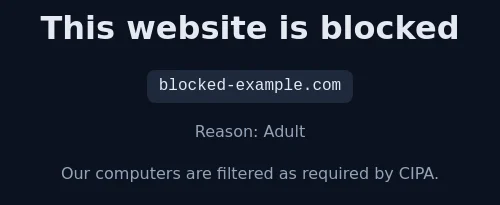
Press Open a preview. The page shows your details with a sample blocked website and the reason Adult.
Save
Press Save block page. The new page is used for the next block on any of your networks.
How the filter shows the right page
The block page has to know which customer a visitor belongs to. It works this out from where the request comes from, without cookies or logins.
Lookup is blocked
A device asks the filter for a website in a blocked category. The filter answers with the address of our block page server.
Browser connects
The browser opens the block page server, believing it is the website it asked for.
Network recognised
The server matches the visitor's public address to a registered network, or to recent use of a network's encrypted DNS link.
Page is shown
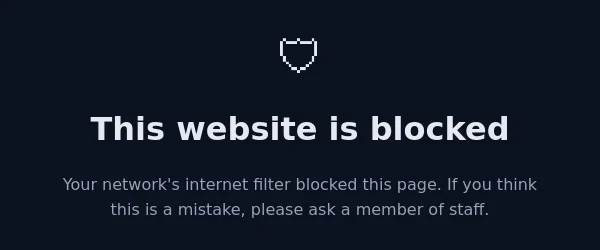
The customer's branded page appears, with the website name and the reason. Unknown visitors get the neutral page.
The reason line uses plain labels: the category name, such as Adult or Gambling, "Custom block list" for your own blocks, or a note that a filter bypass service was stopped. More on categories in the web filtering categories overview.
The reasons a visitor can see
The reason line is short on purpose. Here is what each kind of reason means and what staff can do when someone asks about it.
| Reason shown | What it means | What staff can do |
|---|---|---|
| A category name, such as Adult or Gambling | The website belongs to a category the network's profile blocks, all day or under a time schedule | If the site is wrongly labelled, add it to always allowed. For adult research, use the staff bypass. |
| Custom block list | Someone in your organization put the website on an always blocked list | Check the Policy page or the network page and remove it if it no longer applies |
| Filter bypass (public encrypted DNS) | The device tried to use a public encrypted DNS service that would skip the filter | Nothing for the visitor; the device should use the network's normal DNS settings |
| No reason line | The page could not match the request to a block, for example a visitor from an unregistered network | Check that the network's address is registered under Networks |
To see the full picture for one website, search for it on the Activity page. Each entry shows the time in your time zone, the network, the decision and the category. Category definitions are on pages such as adult content and gambling.
HTTPS sites and the certificate warning
This is the most important limit of any DNS-based block page, so it deserves a plain explanation. Most websites today use HTTPS, and browsers check that the site proves its identity.
Block page appears directly
No certificate is involved, so the visitor sees your branded page straight away.
Warning first, then the page
The browser shows a warning such as "Your connection isn't private". If the visitor continues past it, your branded block page appears.
Warning only
Sites that browsers protect with strict security settings do not allow clicking past the warning. The visitor sees only the warning, and the site stays blocked.
Why the warning? Only the real website holds a valid certificate for its name. The block page server cannot present one, and browsers are built to warn when that happens. Every DNS filter meets this; it is not a fault in your setup.
| Question | Answer |
|---|---|
| Is the site still blocked when the warning shows? | Yes. The browser never reaches the real website. The warning replaces the block page, it does not open the site. |
| Is clicking past the warning risky? | It leads only to our block page server, which shows the block page. Still, teach users not to click past warnings on other occasions. |
| Can the warning be avoided? | Only by installing a trusted certificate on every device, which needs full device management. The hosted filter does not install anything on your devices. |
| What should staff tell users? | That a security warning on a blocked site is how the filter shows up on secure websites, and who to ask if the site is needed. |
For more background see SSL inspection and URL categories and DNS filtering vs web filtering.
Writing a good block page message
People read a block page for two seconds. The message should calm, explain and point to help, in that order.
Works well
- "This computer is filtered as our internet policy requires."
- "If you need this site for study or work, ask at the front desk."
- One contact route that someone actually answers
- Plain words without legal citations
- The same tone as your other signs and notices
Better left out
- Long policy text; link to it from your website instead
- Threats or warnings about consequences
- Personal staff names that change with shifts
- Promises about how fast requests are handled
- Technical terms such as DNS, categories or resolvers
Three sample setups
Sample wording for three kinds of organization. Copy the shape, then put in your own names and contacts.
Message
"This computer is filtered as required for public libraries. Adults who need a blocked site for research can ask at the desk."
Contact text
"Ask at the front desk, or contact us:" with the library's help email and main phone line.
Message
"This site is blocked on the school network. If you need it for a lesson, ask your teacher."
Contact text
"Staff can request changes from IT:" with the IT help desk email only, so students go through their teacher.
Message
"This site is not available on the office network under our acceptable use policy."
Contact text
"Need it for work? Contact IT support:" with the support email or the managed service provider's phone number.
Libraries can mention the adult research option because the hosted filter includes a timed staff bypass. Details are in the staff bypass PIN guide.
What different devices show
The block page is a web page, so what people see depends on what tried to open the blocked site. Knowing this saves calls to the help desk.
| Where the block happens | What the person sees |
|---|---|
| Desktop browser, plain http site | Your branded block page |
| Desktop browser, https site | A browser security warning; after continuing, your block page where the browser allows it |
| Phone browser | The same as desktop; the page layout fits small screens |
| Phone or tablet app | Usually the app's own "cannot connect" message, because apps do not display web pages for errors |
| Device using the encrypted DNS link away from your network | The same block, and your branded page if the link was used recently from that address |
| Image or video embedded in another site | A missing image or an empty player box inside the other page |
Testing your block page
After saving, check the page from a real device on one of your networks. Five minutes is enough.
Use Open a preview first
Confirm the logo is sharp, the name is right and the message reads well on a narrow window.
Try a plain http site
From a filtered device, open a site you know is blocked that still uses http. Your branded page should appear directly.
Try an https site
Open a blocked secure site. Expect the browser warning; continue if the browser offers it and check your page appears.
Click the contact links
Check the email link opens a new message and the phone link offers to call on a phone.
Limits to know
The branded page is simple by design. These boundaries come from DNS filtering or from how the feature is built today. If one of them is a problem for your setup, tell us during onboarding and we will look at it with you.
| Limit | What it means for you |
|---|---|
| One design per account | All networks in an account share the same name, logo and message. Separate designs need separate accounts. |
| Website names only | DNS filtering never sees full URLs, so the page names the website, not the exact page the visitor tried. |
| Recognition by network | Visitors whose address is not registered, and who have not used an encrypted link recently, see the neutral page. |
| No request form | The page shows contact details; it does not collect unblock requests. People reach you by email or phone. |
| Apps do not show pages | When an app, not a browser, is blocked, it usually shows its own connection error instead of the block page. |
| Language | The fixed texts, such as the heading, are in English. Your message and contact text can be in any language. |
| Fixed layout | Colours and layout are the same for every customer: a dark, calm page with a white logo tile. You choose the content, not the design. |
| Browser memory | After a site is unblocked, a browser may show the block page or warning for about a minute until it asks the filter again. |
Block page questions
Why do people see a certificate warning on HTTPS sites?
The browser expects the real site's certificate, which only that site has. It warns first. This applies to every DNS filter. Plain http sites show the block page directly.
What can I put on the block page?
A name, a logo in PNG, JPG or simple SVG up to 200 KB, a message of up to 500 characters, a contact line, an email and a phone number.
Does the page show why a site was blocked?
Yes, the website name and the reason, when the visitor's network is recognised.
What do unrecognised visitors see?
A neutral page saying the network's filter blocked the page and suggesting they ask a member of staff. It carries no customer branding.
Can each network have its own block page?
Branding is set per account, so all networks share one design. The website and reason change with each block.
Can I preview the page before saving?
Yes. Use Open a preview under Settings.
Is the block page listed in search engines?
No. It tells search engines not to index it and tells browsers not to store it, so a block is never cached as a real site.
Does the block page record who saw it?
No. The page does not ask for names, set cookies or show anything about the visitor. The block itself appears in your Activity log as a lookup from the network.
Can the message mention our acceptable use policy?
Yes. Name it in a short sentence and keep the full policy on your own website, where people can read it in comfort.
Do changes to the page apply at once?
Yes. The next block after saving uses the new details. A visitor with the old page still open sees the new one after reloading.
How do I remove the logo?
Tick Remove the logo on the Settings card and save. The page then shows a shield icon in its place.
Want your block page set up for you?
Send us your logo, the message you want and your contact details. We add them during onboarding and check the page with you.
Related guides: staff bypass PIN · import allow and block lists · what is DNS filtering