Monthly filtering reports: one clear record per month, per network
Directors, boards and auditors want to know that the filter works and how it is used. Our managed DNS filter builds a monthly activity report for every network and for the whole account, and can email it on the first of each month.
Who reads these reports
The report is written for people who do not log in to the dashboard. It answers the questions they ask, in tables they can scan in a minute.
Library directors
A monthly line of evidence that the filter ran, what it blocked and how often staff opened adult research.
Boards and trustees
A short printout for a policy review or an annual meeting, without technical detail.
IT contacts
CSV files to spot wrong blocks, busy categories and networks that went quiet.
IT providers
A ready monthly summary for each client account. See web filter for MSPs.
What is in the monthly report
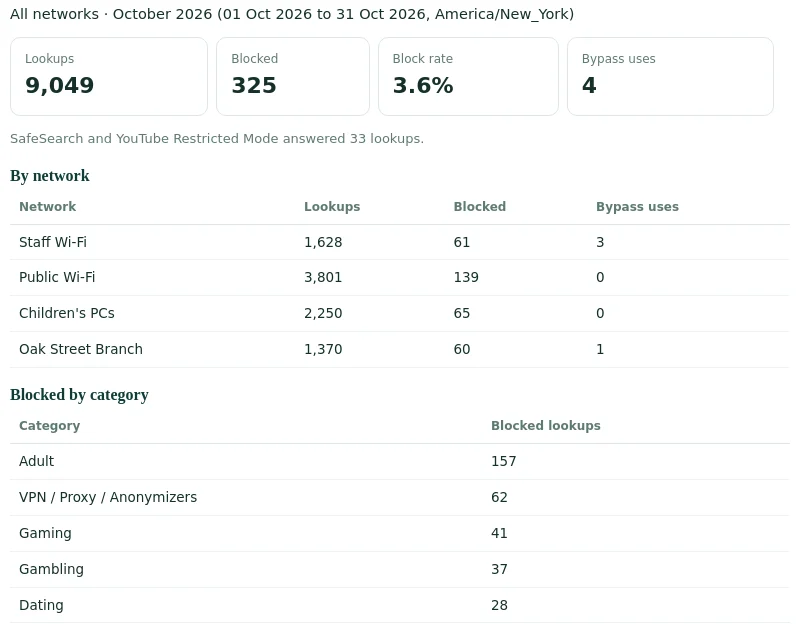
Every monthly report has the same parts in the same order, so month-to-month comparison is easy. The picture shows a report with sample data for an account with four networks.
Scope line
The network or All networks, the month, the exact start and end dates and the time zone used.
Four headline figures
Lookups, blocked lookups, block rate as a percentage and the number of staff bypass uses.
SafeSearch line
When used, how many lookups were answered with SafeSearch or YouTube Restricted Mode.
By network
For the all-networks report: lookups, blocks and bypass uses for each network side by side.
Blocked by category
Every category that blocked something, with its count, largest first.
Most blocked websites
The 20 websites blocked most often in the month, with counts.
Staff bypass use
Each bypass event with local time, network, event, minutes and whether it came from the staff page or the dashboard.
All the reports on the Reports page
The monthly report is the main one. Four more records sit next to it for different jobs.
Monthly activity report
Choose one of the last 12 months and one network or all of them. Open it to print or save as PDF, or download it as CSV.
Month by month recordActivity report, last 30 days
Totals, blocked categories, top blocked sites and staff bypass use for the last 30 days, ready to print.
Quick current pictureFiltering policy record
The categories you block, your allow and block lists and your bypass rules, on one printable page.
For policy reviewsBlocked lookups CSV
Every blocked lookup in the last 90 days, for your own analysis or an audit.
Raw detailBypass log CSV
Every time staff started or ended an adult bypass, with network and source.
AccountabilityActivity page
Not a report, but the live view behind them: search lookups by website, see the decision, category and network.
Day-to-day checksSetting up the monthly email, step by step
Reports are always available in the dashboard. The email is optional and takes two settings.
Set your time zone
Under Settings, pick the time zone of your building. Months start and end at local midnight.
Add recipients
Under Monthly report email, enter up to 10 addresses separated by commas, then save.
Check network names
Reports use network names. Rename networks to what readers know, such as branch names.
Open this month's report
On the Reports page, open the current month to see what the email will look like.
Wait for the first
On the first day of next month the email arrives with last month's figures and CSV files.
Adjust as needed
Add or remove recipients at any time. An empty field switches the email off.
What the email contains
One email per account per month. It is built to be read on its own, without opening the dashboard.
| Part | Content |
|---|---|
| Subject | Web filter report for the month, with your account name |
| Body, first section | The all-networks report: headline figures, by network, categories, most blocked websites, bypass use |
| Body, further sections | One section per network when the account has more than one network |
| Attachments | One CSV for all networks, plus one CSV per network |
| Link | A link to the Reports page in your dashboard |
| Footer | A note on why the recipient gets the email and how to change it |
The email comes from our filter service address, so ask your email team to treat it as a known sender if it lands in a spam folder. Each month is sent once per account. If you add a recipient mid-month, they receive the next monthly email; earlier months stay available in the dashboard for download.
Per-branch reports for library systems and districts
When each branch or school is its own network, the monthly email doubles as a set of branch reports. No extra setup is needed beyond naming the networks well.
One email, every branch
The system-wide summary comes first, then one section per branch in the same email.
One file per branch
Each branch has its own CSV attachment, ready to forward to the branch manager.
Any month, any branch
The Reports page opens a single branch for any of the last 12 months on demand.
Bypass per branch
Each branch's staff PIN use shows up under its own name, so branch managers see their own desk's record.
The CSV layout
The CSV holds the same figures as the printed report, in blocks separated by an empty row. It opens in any spreadsheet program.
| Block | Columns |
|---|---|
| Header | report, customer, network, month, time_zone, period |
| Metrics | lookups, blocked, block_rate_percent, safesearch_answers, bypass_uses |
| By network | network, lookups, blocked, bypass_uses |
| Categories | category, blocked_lookups |
| Websites | website, blocked_lookups |
| Bypass | bypass_time_local, network, event, minutes, started_from |
File names include the account, the network and the month, so a folder of monthly files sorts itself.
Times in the bypass block use your local time zone, written as year, month, day, hours and minutes, which spreadsheets sort correctly. To compare branches over a year, paste the metrics block of each monthly file into one sheet, one row per month.
How to read the numbers
A few notes help readers avoid the most common misreadings of DNS filter figures.
Lookups are not page views
One page can trigger many lookups for images, scripts and ads. Repeats of the same website within a few seconds count once, but a lookup count is still not a visit count.
Block rate is a ratio
A low percentage is normal. Most traffic goes to ordinary sites, and blocked lookups are a small share of it.
Odd domains in the top 20
Ad and tracking domains, and devices retrying in the background, often top the list. They are not proof that someone browsed there.
Categories add up differently
A website can carry more than one category, so category counts can exceed the blocked total.
Bypass uses
The figure counts started bypasses. The table shows each one, including early ends, so the length of each opening is clear.
Quiet networks
A network with almost no lookups usually means its router stopped using the filter, or its address changed. Check it under Networks.
Reading the By network table
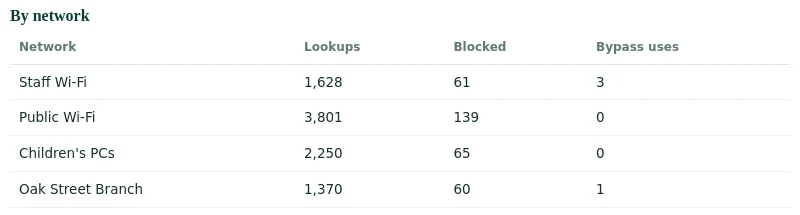
For accounts with several branches or Wi-Fi networks, this table is often the most useful part. It shows at a glance where traffic and blocks come from.
Compare like with like
Public networks block more than staff networks; that is expected. Compare each network with its own previous months.
Bypass by network
Bypass uses should appear only where staff work with adult researchers. Uses on a children's network deserve a question.
Sudden drops
A network whose lookups fall to almost nothing has usually stopped using the filter. Check its router and registered address.
A ten-minute monthly routine
The email arrives on the first. A short routine turns it into a habit that catches problems early and builds a clean record over the year.
Headline figures
Compare lookups and block rate with last month. Big jumps in either direction are worth a look.
By network
Check every network has traffic, and bypass uses sit on the networks you expect.
Most blocked websites
Scan for well-known, harmless sites. They point to a wrong label; add them to always allowed.
Categories
A new category near the top may follow a policy change or a new schedule. Confirm it was intended.
Bypass table
Confirm the times and networks look like normal desk use. Change the PIN if anything looks odd.
File it
Save the email or the CSV with your policy papers. A year of files makes the annual review easy.
Building an annual review pack
Many boards review the internet safety policy once a year. The dashboard gives you the pieces; this is one way to assemble them.
Current policy record
Print the filtering policy record on the day of the review. It shows blocked categories, lists and bypass rules as they stand.
One pageTwelve monthly reports
The saved emails or CSV files for the year. A simple chart of monthly block rate tells the story in one picture.
Trend over the yearBypass summary
Count bypass uses per network from the twelve reports. It shows the research option is used, and used sparingly.
AccountabilityChanges made
Your own short note of policy changes during the year, such as a new schedule or a category switched on, with the reason.
Context for readersReadiness checks on the Overview page
Between reports, the dashboard's Overview page shows five plain checks. They answer the question a director asks most: is the filter actually doing its job right now?
Protection measure in place
Passes when the filter answered lookups from a registered network address in the last 24 hours.
Harmful content blocked
Passes when the Adult category is blocked on every network's profile.
Adult research access
Passes when a staff PIN is set, and shows when the bypass was last used.
Policy documented
Points to the printable policy record on the Reports page.
Records kept
Passes when lookups are on record and searchable under Activity.
When a check fails
The check says what to do, for example register the network address or switch Adult back on.
What the filter records, and what it does not
Reports can only contain what the filter stores. The record is deliberately small, which also keeps the reports safe to share with a board.
| Recorded for each lookup | Not recorded |
|---|---|
| Time of the lookup | Names of people or user accounts |
| Website name looked up | Full web addresses, search terms or page content |
| Network that sent it | Messages, chats, keystrokes or screens |
| Decision: allowed, blocked or SafeSearch | Device names |
| Category or reason for a block | Anything sent after the website opened |
Staff bypass events are recorded with time, network, minutes and whether they came from the staff page or the dashboard. Our own service names, such as the dashboard, are not logged as part of your record.
Limits of the reports
The reports describe what the DNS filter saw. They do not see more than the filter does.
Website names, not URLs
DNS filtering never sees full URLs or page content, so reports list websites, not pages, searches or videos.
Networks, not people
Lookups are recorded per network. The report does not show which person or device made them.
Only filtered traffic
Devices that do not use the filter, such as phones on mobile data without the encrypted link, do not appear.
Not legal advice
The report supports your own documentation. Your certification and your policy remain your responsibility.
Website category filtering is one layer of online safety. These reports do not monitor messages, keystrokes or behaviour, and they are not a safeguarding tool.
Keep your school or library safeguarding process for those concerns. For the bigger picture see CIPA web filtering and compliance web filtering.
Report questions
What is in the monthly filtering report?
Total lookups, blocked lookups, block rate and staff bypass uses, a breakdown by network, blocks by category, the 20 most blocked websites and a table of staff bypass events.
Who receives the monthly email?
Up to 10 addresses entered under Settings. Leave the field empty to switch the email off; reports stay in the dashboard.
When is the report emailed?
On the first day of each month, covering the previous calendar month in your account's time zone.
Can I get a report for one branch only?
Yes. Choose the month and the network on the Reports page. The email also includes one section and one CSV per network.
Does the report show what individual people browsed?
No. Lookups are recorded by network, not by person.
Is the report proof of CIPA compliance?
It is a record from your settings and logs that supports your documentation. It is not legal advice and does not replace your certification.
What happens to a deleted network in old reports?
Its rows keep the network's name, marked as deleted, so earlier months still read correctly.
Can recipients without a dashboard login read the report?
Yes. The email carries the full report in its body and the CSV files as attachments. Only the link back to the Reports page needs a login.
Can I print the report?
Yes. Open it from the Reports page and use the Print or save as PDF button. The layout is made for paper and keeps the tables on the page.
Do SafeSearch answers count as blocks?
No. Lookups answered with SafeSearch or YouTube Restricted Mode are counted on their own line, not in the blocked total.
Why does a website I never visited appear in the top 20?
Pages load content from many other websites, and devices check for updates in the background. A blocked advertising or tracking domain can appear often without anyone choosing to visit it.
Can the report be sent to a client of ours?
Yes. Each customer account has its own recipient list. IT providers usually add the client's director plus their own support address.
How far back can I open monthly reports?
The month picker offers the last 12 months. Download the CSV each month if you need to keep a longer archive of your own, or keep the monthly emails in a shared mailbox folder that your successor can find.
See a report built from your own network
Tell us who needs the monthly email and how many networks you run. We set up recipients, names and time zone with you.
Related guides: staff bypass PIN · time schedules · library web filtering · profiles and networks · managed DNS filter overview
YouTube is a trademark of Google LLC. It is used here only to identify the service discussed. Web Filtering Database is not affiliated with, sponsored or endorsed by its owner.