Web filtering for senior living communities: protect residents from scams, not from the internet
Residents of senior living, assisted living and care communities video-call grandchildren, read the news, bank and shop online. They also face scammers who target older people deliberately. This guide is for operators and their IT or Wi-Fi providers who want to stop the scams without treating adults like children.
Four principles
The scams worth blocking at the network
Fraud reports in the US and the UK regularly list a handful of scams among those that hit older people hardest. Each depends on a website or a tool that a category filter can stop.
Fake tech support
A pop-up or phone call claims the computer is infected and asks the resident to install a "support" tool.
Block Remote Access Tools; allow only your IT provider's tool.Prizes and sweepstakes
Messages announce a win and ask for a fee or bank details on a lookalike page.
Block Gambling and Parked / For-Sale domains; keep a block list for reported sites.Romance scams
Long conversations that start on dating or social sites and end in requests for money.
Leave dating open by default; offer it as an opt-in block.Investment and crypto
"Guaranteed" returns on crypto platforms nobody has heard of.
Block Cryptocurrency on the standard resident network if your residents agree.Disguised links
Short links in emails and texts hide where they lead.
Block URL Shorteners on a stricter opt-in network.Help to "stay private"
Scammers sometimes ask victims to install a VPN so the bank cannot see what is happening.
Block VPN / Proxy / Anonymizers on resident networks.Switch off the scam toolkit on resident Wi-Fi and leave the rest open
Our managed DNS filter lets a community block remote access tools, VPN services and other scam categories on the resident network, while video calls, news, banking and shopping keep working. Staff and visitor networks get their own rules from the same dashboard.
- Remote Access Tools blocked, your IT provider's tool on the always-allow list.
- A branded block page with the front desk's number.
- Monthly totals by category, never a resident's history.
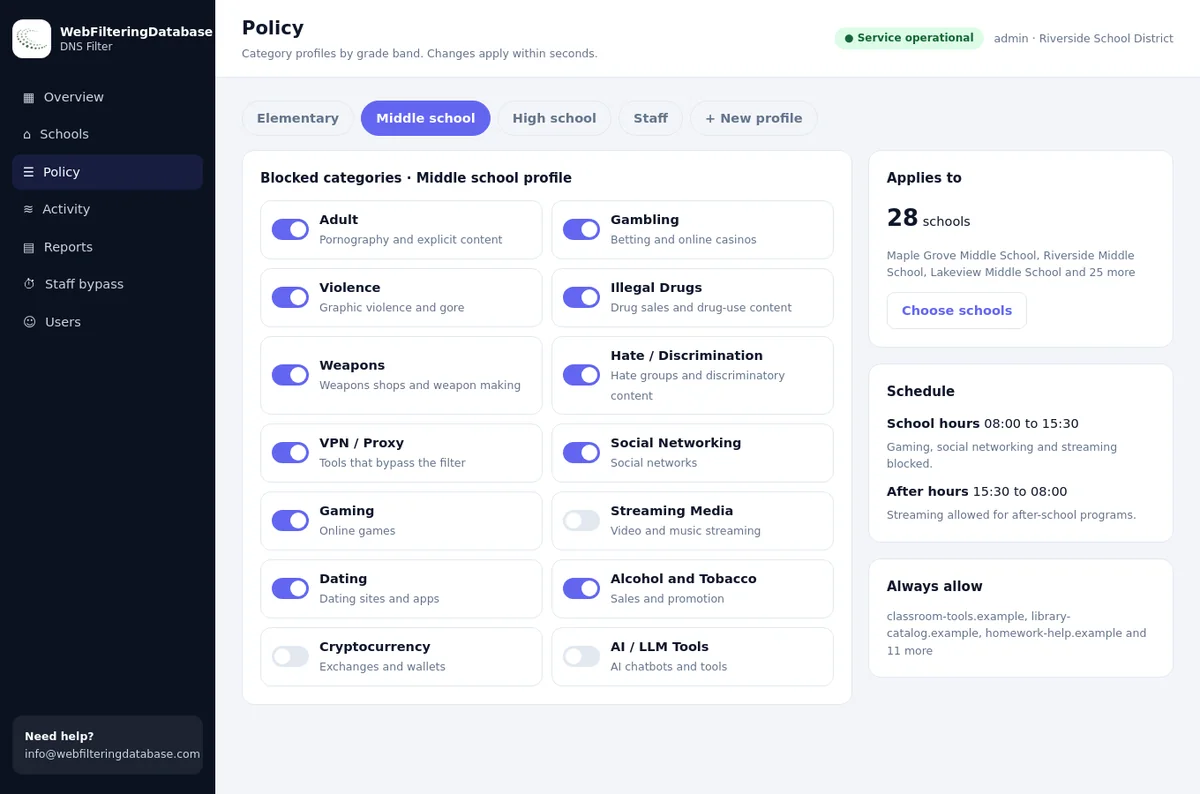
Four networks, four sets of rules
Most communities already run more than one Wi-Fi network. Giving each its own profile settles almost every filtering question.
Residents
The standard network- Open by default
- Block Remote Access Tools, VPN / Proxy, Adult
- Gambling as the community decides
Extra protection
Opt-in network- Everything on the standard list
- Plus URL Shorteners, Cryptocurrency, Dating
- For residents who ask, or families with consent
Staff
Care and office systems- Business security rules
- Care software and payroll on the always-allow list
- Kept apart from resident devices
Visitors
Family and contractors- Guest rules: Adult, VPN / Proxy, File Sharing
- No access to staff systems
- A short notice on the sign-in page
Each network gets its own profile in the dashboard; see profiles and networks. Common-room PCs can share the extra-protection profile.
Six sites and how a resident network would treat them
Real rows from our data. The point is to block the scam toolkit, not the sites residents love.
| Site | Categories in our data | On the standard resident network |
|---|---|---|
| ultraviewer.net | Remote Access Tools, Computers & Technology, Freeware/Software | Blocked: a tool scammers ask victims to install |
| splashtop.com | Remote Access Tools | Blocked unless it is your IT provider's tool |
| logmein.com | Business, Remote Access Tools | Blocked unless allowed for support |
| pch.com | Gaming, Advertising/Marketing | Open; prize scams use lookalikes, which go on the block list when reported |
| aarp.org | Community Sites, Health & Medicine | Open |
| weather.com | Education/Reference, News/Media | Open |
Residents' freedom and privacy
A care community is someone's home. Filtering there needs a lighter hand and clearer consent than at a school or an office, and the answers below are a good starting point for the conversation.
| Question | A respectful answer |
|---|---|
| Who decides the rules? | The operator sets a light standard, explained to residents; residents can ask for more or less protection |
| Can families ask for stricter rules? | Yes, with the resident's agreement, or through whoever holds legal authority for a resident who lacks capacity |
| Is anyone watching what residents do? | No. Reports show totals by category and network; individual browsing is not reviewed except in an agreed case such as a reported fraud |
| What about adult content? | Residents are adults; blocking Adult on shared networks and common-room PCs is usual, and private choices on personal devices stay private where your policy allows |
| Where is it written down? | In the residents' handbook and the community's privacy notice, in plain words |
A block page that helps instead of alarming
An older resident who meets a bare error message may think the computer is broken, or that the scammer was right. The block page should calm and point to help.
This site has been blocked to protect you
Sites like this are often used in scams. Nothing is wrong with your computer.
If someone asked you to open it, please talk to us first.
Front desk: extension 100The managed filter's branded block page carries your community's name, message and contact details.
How the managed filter supports staff when a scam is suspected
Staff can see whether a scam site or a remote access tool was blocked on the resident network, and add any site a resident reports to the always-block list in seconds, for every building. The monthly report shows whether blocked scam categories are rising, without singling anyone out.
Setting it up across a community
Five steps, most of them conversations rather than technology. The router changes take minutes; agreeing the rules with residents and staff is where the time goes, and it is time well spent.
Map the networks
List resident, staff, visitor and common-room networks in each building.
Agree the standard
Decide the light resident rules with the residents' council or representatives.
Allow your support tools
Put your IT provider's remote tool and care software on the always-allow list.
Switch the routers
Point each network's DNS at the filter and test with a resident volunteer.
Explain and review
A one-page note for residents and families; review the rules every year.
What filtering does not replace
A network filter stops many scams at the first click. It works best as part of a wider habit of care that staff, families and residents share.
Phone scams
Many scams start with a call. A filter cannot hear it, but it can stop the remote access tool the caller asks for.
Pair with call-blocking on resident phones where offered.Mobile data
Phones on mobile data leave the community's network and its rules.
Residents' own carriers may offer scam filters.Talking about scams
Short sessions on common scams make residents the first line of defence.
Use real, recent examples from your own reports.Common-room and library computers
Shared computers in a lounge or library corner need a little more care than residents' own devices, because many people use them and few log out.
Use the stricter profile
Put shared PCs on the extra-protection network, so shorteners and crypto sites are blocked for everyone who sits down.
Adult blocked as on any shared screen.Reset between users
A browser that clears itself on close stops the next resident finding someone else's email or bank session.
Most operating systems offer a guest or kiosk mode.No installs
Accounts without administrator rights cannot install the remote access tool a scammer asks for, even if the filter were bypassed.
A second lock behind the network block.Resident Wi-Fi with no filter, a strict filter, or the managed light-touch setup
Three ways communities run resident internet today.
| Question | No filtering | Strict, school-style filtering | Managed DNS filter, light touch |
|---|---|---|---|
| Remote access scams | Open | Blocked | Blocked, your IT tool allowed |
| Residents' everyday browsing | Open | Often blocked, with complaints | Open |
| Different rules per network | Not possible | Rarely set up | A profile per network |
| Residents' privacy | Not affected | Often monitored | Totals by category, no individual review |
| A reported scam site | Stays open | Request to the provider | Always-block entry for every building in seconds |
Senior living web filtering: frequently asked questions
Should a senior living community filter residents' internet?
Lightly. Residents are adults and should browse freely, but blocking the tools and sites scammers rely on, such as remote access software and fake prize sites, protects them without limiting ordinary use.
Why block remote access tools for residents?
Tech support scams usually end with the victim installing a remote access tool so the scammer can take over the computer. Blocking that category on the resident network stops the most damaging step, while your own IT provider's tool stays allowed.
Can residents choose stricter or looser filtering?
Yes, with separate networks. A standard resident network carries light rules, and residents who ask for more protection, or whose families arrange it with their agreement, can join a network with a stricter profile.
Does web filtering mean monitoring residents?
It should not. Block categories and report totals by category and network; do not review individual residents' browsing except in a specific, agreed situation such as a reported fraud.
What should the block page say?
Something calm and practical: that the site was blocked because it is often used in scams, and who to call at the front desk or IT help line if the resident needs it.
Will residents notice the filter?
Rarely. On the standard network, ordinary browsing, video calls, banking and shopping work as before; residents only see the block page when a site belongs to a scam-related category.
Can we block a scam site a resident reported?
Yes. Add the domain to the always-block list in the dashboard and it is blocked on every network of the community within seconds.
Does this work with the Wi-Fi provider we already have?
Usually yes. The filter only needs the DNS setting on each network's router or controller to point at it, which most managed Wi-Fi providers can change for you.
How is the staff network handled?
Staff, residents and visitors should be on separate networks with separate profiles. Staff networks carry health records and payment systems and need their own, stricter security rules.
The managed DNS filter costs $99 a month for one building, and communities with several buildings get a single quote. A pilot in one building, with a few resident volunteers, shows the scam blocks working before you roll out further.
Keep residents connected and scammers out
Tell us how many buildings and networks you run. We will set up a pilot with a light resident profile, your support tools allowed and a block page with your front desk's number.