Why is a website blocked? Find the filter, then the fix
Someone says a site is blocked and they need it now. This guide helps the person who gets that message find which filter stopped the site and why, then fix it without opening up everything else.
It works for office networks, libraries, schools and the client networks an IT provider looks after.
Four checks, in this order
- 1Read exactly what the screen says, and copy the full address from the address bar.
- 2Run one lookup command to see whether DNS filtering answered.
- 3Look up the site's category to see which rule it matched.
- 4If DNS is clean, check the firewall, the browser and the device itself.
Read the symptom first
What the person sees already narrows it down. Ask for a screenshot before anything else; it saves most of the guessing.
| What they see | What it usually means | Next check |
|---|---|---|
| A page that names a filter or your organisation | A filter's block page. It often shows the category or the rule that matched. | Look up the category and your policy |
| "Your connection isn't private" on a site that normally works | A DNS filter answered for an encrypted site and sent the browser to a block server. | Run the lookup command |
| "This site can't be reached" or a lookup error | The name did not resolve, or resolved to an empty address such as 0.0.0.0. | Run the lookup command |
| The page loads, but video, images, sign-in or payment fail | One supporting domain is blocked, not the site you typed. | Find the failing domain in the filter's activity |
| Works on mobile data, fails on the Wi-Fi | Something on your network: DNS filter, firewall or a router list. | Run the lookup command on the Wi-Fi |
| Works in one browser, not in another | A browser policy, an extension, or the browser's own secure DNS setting. | Check the browser layer |
| "Access denied" or "not available in your region" in the site's own design | The website itself refused the visit. Your filter is not involved. | Ask the site, not your filter |
Why a certificate warning? A DNS filter cannot hold a valid certificate for every site it blocks, so an encrypted site shows a warning first. On our managed filter, where the browser lets you continue past the warning, the block page appears with the reason.
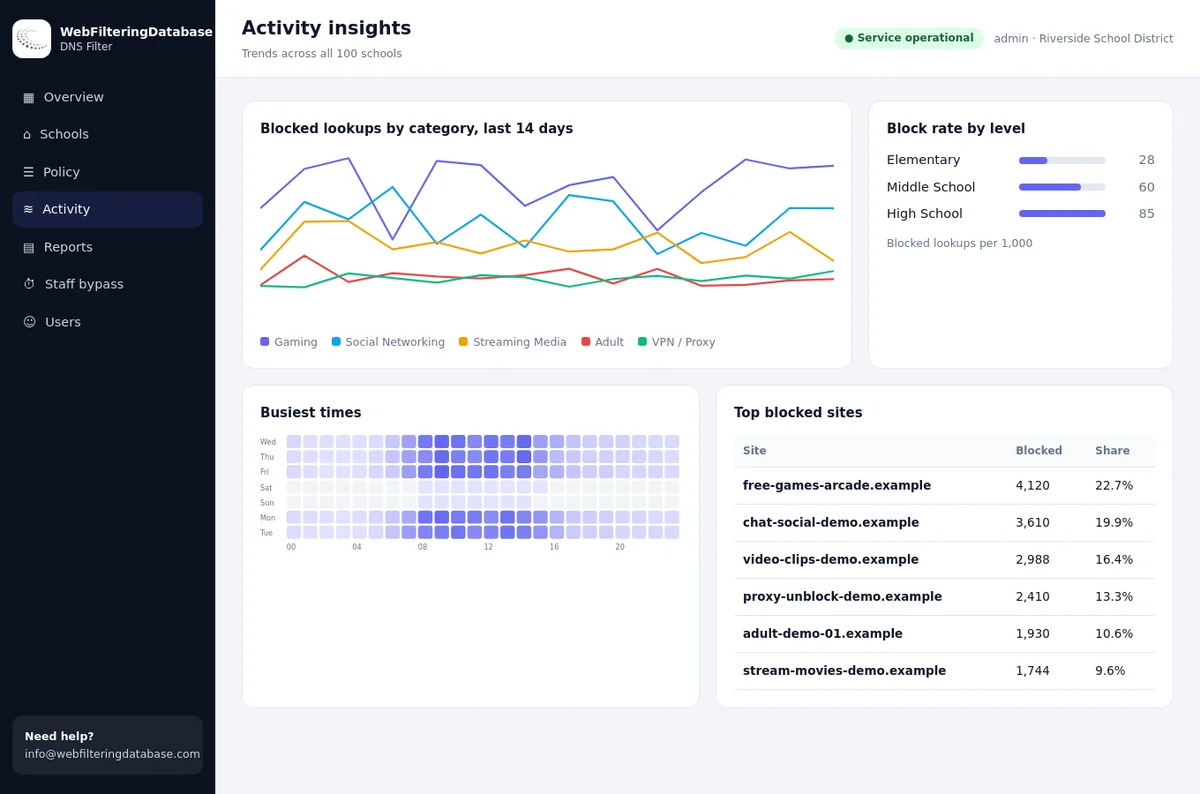
See the blocked lookup, the network and the category together
On our managed DNS filter, every lookup in the activity log shows the time, the website, the network, the result and the category that matched. Most "why is this blocked" questions are answered before you leave the page.
- Search the activity for the domain the person sent you.
- Add an always-allow entry and it applies in seconds.
- Export blocked lookups as CSV when a manager wants the record.
Run one lookup command to see if DNS filtering blocked it
Run this on the device that sees the block, connected to the same network. Replace example.com with the domain from the address bar, without https:// or the path.
Windows
Open Command Prompt from the Start menu and type:
nslookup example.comMac
Open Terminal from Applications, Utilities and type:
nslookup example.com0.0.0.0, or your filter's block address
DNS filtering blocked it. Go to the category check below.
A normal address
DNS did not block it. The block is in another layer: firewall, proxy, browser or device.
"Can't find" the domain
The name may be mistyped or gone, or your filter answers that way for blocked names. Check the spelling, then the activity log.
Look at the "Server" line too. It shows which DNS server answered. If it is not your filter's address, that device is not using the filter at all, which also explains sites that should be blocked and are not.
After a change, clear the old answer
Windows
ipconfig /flushdnsIn Command Prompt.
Mac
sudo dscacheutil -flushcache; sudo killall -HUP mDNSResponderIn Terminal, then enter your password.
Chrome and Edge
chrome://net-internals/#dnsClick "Clear host cache". In Edge, start the address with edge:// instead.
Firefox
about:networking#dnsClick "Clear DNS Cache".
Check the category, then the rule that used it
A category filter blocks a site when any of its categories is switched on. Popular sites often carry two or three, and the one that triggered the block is not always the obvious one.
Look up the domain
Use the web filter lookup or your filter's own search. Note every category, not only the first.
Compare with the policy
Find which of those categories is switched on for the network the person was on. That is the rule that fired.
Check the lists
An always-block entry beats every category. If the category is off and the site is still blocked, look at your block list.
Five sites and the switch that decides each one
These rows come straight from our data. The last column names the switch on our managed filter that would block each site, which is not always the category you would guess.
| Site | Categories on record | Switch that would block it |
|---|---|---|
| youtube.com | Streaming Media, Social Networking | Neither: core services stay out of broad switches, so use Restricted Mode or an always-block entry |
| teamviewer.com | Freeware/Software, Remote Access Tools | Remote Access Tools |
| bit.ly | URL Shorteners | URL Shorteners, which also hides every link behind it |
| canva.com | Web-based Applications, AI / LLM Tools | AI / LLM Tools, a surprise for design teams |
| github.com | Developer Tools / Code Hosting | None of the 22 switches; only a block list entry would |
Not DNS? Check the other layers that block websites
If the lookup returned a normal address, the block sits somewhere else. Work from the network edge inwards to the device.
Firewall URL filtering
Many firewalls filter by category too. Search the firewall's traffic or threat log for the domain and the time.
Proxy or web gateway
Its block page usually names the product. The gateway log shows the rule that matched.
Browser policy or extension
Managed browsers can carry block lists, and content blocker extensions can break pages. Compare with a second browser on the same device.
Security software
Web protection in endpoint software blocks sites it rates as risky. Its own console or alert history will say so.
The hosts file
A line with the domain in the device's hosts file overrides DNS. On Windows it lives in the drivers\etc folder; on a Mac it is /etc/hosts.
Device parental controls
Screen time and family settings on phones, tablets and laptops have their own website limits, separate from the network.
The internet provider
Some providers filter adult content by default on home or mobile lines. The provider's account settings control it, not yours.
The website itself
Region locks, bot checks and maintenance pages look like blocks. If the message is in the site's own design, the site said no.
Fix the block without opening a whole category
The fastest fix, switching the category off, is rarely the right one. It opens every other site in that category for every person on the network.
Allow the exact domain
Add the site to the always-allow list. Everything else in the category stays blocked. See importing allow and block lists if you have many.
Allow the helper domains
If the site loads but parts fail, the activity log shows the other domains it calls at that moment. Allow those too, and only those.
Use a profile per network
Staff may need what guests should not have. Profiles and networks keep both rules in place.
Use a schedule
Some sites are fine at lunch and not during opening hours. Time schedules switch a category by the clock.
Use the staff PIN
For research on adult topics, a staff bypass PIN opens the adult categories for 15 to 60 minutes and logs it.
Question the category
If a site plainly does not fit its category, tell your data provider with a short note on what the site does. A better category helps every network, not only yours.
How the managed filter shortens a block ticket
Search the activity for the domain and you see which network asked, when, and the category that matched, so steps two and three of this guide take one search. An always-allow entry then applies in seconds, and the CSV export keeps the record of what you changed.
A ticket template for "this site is blocked"
Five answers turn a vague complaint into a two-step fix. Put these fields on your help desk form or in the reply you send.
Block report
Why each field matters
- The full address shows whether the block is on the site or on one of its helper domains.
- The time lets you find the exact lookup in the activity log instead of scrolling.
- The network tells you which profile and which rules applied.
- The screen tells you which layer answered, as in the symptom table above.
- The purpose decides the fix: an allow entry, a profile change, a schedule or a polite no.
Six mistakes that make blocks harder to fix
Each of these turns a five-minute ticket into a repeat visit.
Allowing only the www version
Sites move between the bare domain and sub-domains. Allow the domain itself and check the sub-domains the activity shows.
Switching off the whole category
It fixes one site and opens hundreds of thousands of others. Allow the one domain instead.
Testing before caches clear
The device and browser can keep the old answer for a short time. Clear the caches or wait a minute before you call it broken.
Blaming the filter for the site's own block
Region locks and bot checks look similar. Read who designed the error page before you change any rule.
Allowing a link shortener for one link
Opening a URL shortener opens every link behind it. Ask for the final address and allow that.
Not writing down why
An allow list without reasons becomes a list nobody dares to clean. Note who asked and what for.
Tracing a block by hand, or in the managed filter
The same ticket, worked two ways.
| Question in the ticket | By hand on the device | Managed DNS filter dashboard |
|---|---|---|
| Was it the DNS filter? | Run nslookup on the device | The lookup shows as blocked in the activity |
| Which rule matched? | Look up the category, compare with settings | The category is listed next to the blocked lookup |
| Which network and when? | Ask the person and hope they remember | Time and network are on every row |
| Opening the site | Change a setting on each router or device | One always-allow entry, applied in seconds |
| Proving the fix later | Notes in an email thread | Blocked lookups and reports as CSV exports |
| Same ticket at another site | Repeat everything there | One dashboard for many sites |
Blocked websites: frequently asked questions
Why is a website blocked on my work network?
Usually because a filter on the network matched the site to a blocked category or a block list. The filter can sit in DNS, the firewall, a proxy, the browser or software on the device, so the first job is to find which layer answered.
How do I check which category a website is in?
Enter the domain in a category lookup tool, such as our web filter lookup. Many sites carry several categories, and any one of them can trigger a block if that category is switched on.
How do I check if a domain is blocked by DNS filtering?
Run nslookup followed by the domain in Command Prompt on Windows or Terminal on a Mac. An answer of 0.0.0.0, or the address of your filter's block server, means DNS filtering blocked it; a normal address means another layer did.
Why do I see a certificate warning instead of a block page?
When a DNS filter blocks an encrypted site, the browser is sent to the filter's block server, which cannot hold a certificate for that site. The browser warns first; on our managed filter, where the browser lets you continue, the block page appears.
Why does a site work on my phone but not on the Wi-Fi?
On mobile data the phone uses the mobile network's DNS and none of your filters. On the Wi-Fi it uses your network's filtering, so the block is on your side and the lookup command will show which layer it is.
How long after allowing a site does it open?
On our managed filter an always-allow entry applies in seconds. The device and the browser may keep the old answer for a short time, so clear the DNS cache or wait a minute before testing.
Can staff unblock a site for their own research?
That depends on how the network is run. On our managed filter, staff with a PIN can open the adult categories for 15, 30 or 60 minutes for research; the filter switches back by itself and each use is logged.
The managed DNS filter is $99 a month for one site, and networks with several sites are quoted together. A pilot on your busiest network shows how quickly block tickets close before you decide.
Spend less time on "it's blocked"
Tell us how many sites you look after and where the tickets come from. We will set up a pilot with the activity log, allow lists and staff PIN ready to use.
Windows and Microsoft Edge are trademarks of Microsoft Corporation. Mac is a trademark of Apple Inc. Chrome is a trademark of Google LLC. Firefox is a trademark of the Mozilla Foundation. They are named here only to identify the products discussed. Web Filtering Database is not affiliated with, sponsored or endorsed by these companies.