Web filtering for multi-location businesses and franchises
Chains, franchises and companies with branch offices all want the same thing: one set of rules from head office, followed at every location, without sending a technician to each site. This guide is for the IT lead or provider who runs filtering for ten, fifty or two hundred locations.
What goes wrong when every location filters on its own
Most chains start with whatever each site's router offers. Within a year or so, the same six problems show up.
Drift
Each site's router ends up with different settings, set by whoever was there at the time.
No central view
Head office cannot say what is blocked at any location without phoning it.
Uneven skills
Some sites have a capable manager, others nobody who wants to touch the router.
Guest Wi-Fi at every site
The brand's name is on every guest network, whatever happens on it.
New sites
Every opening repeats the setup, and the newest site is usually the least protected.
Many small bills
A filter bought per site, on different terms, is hard to budget and harder to cancel.
Set the rules at head office and let every site follow them
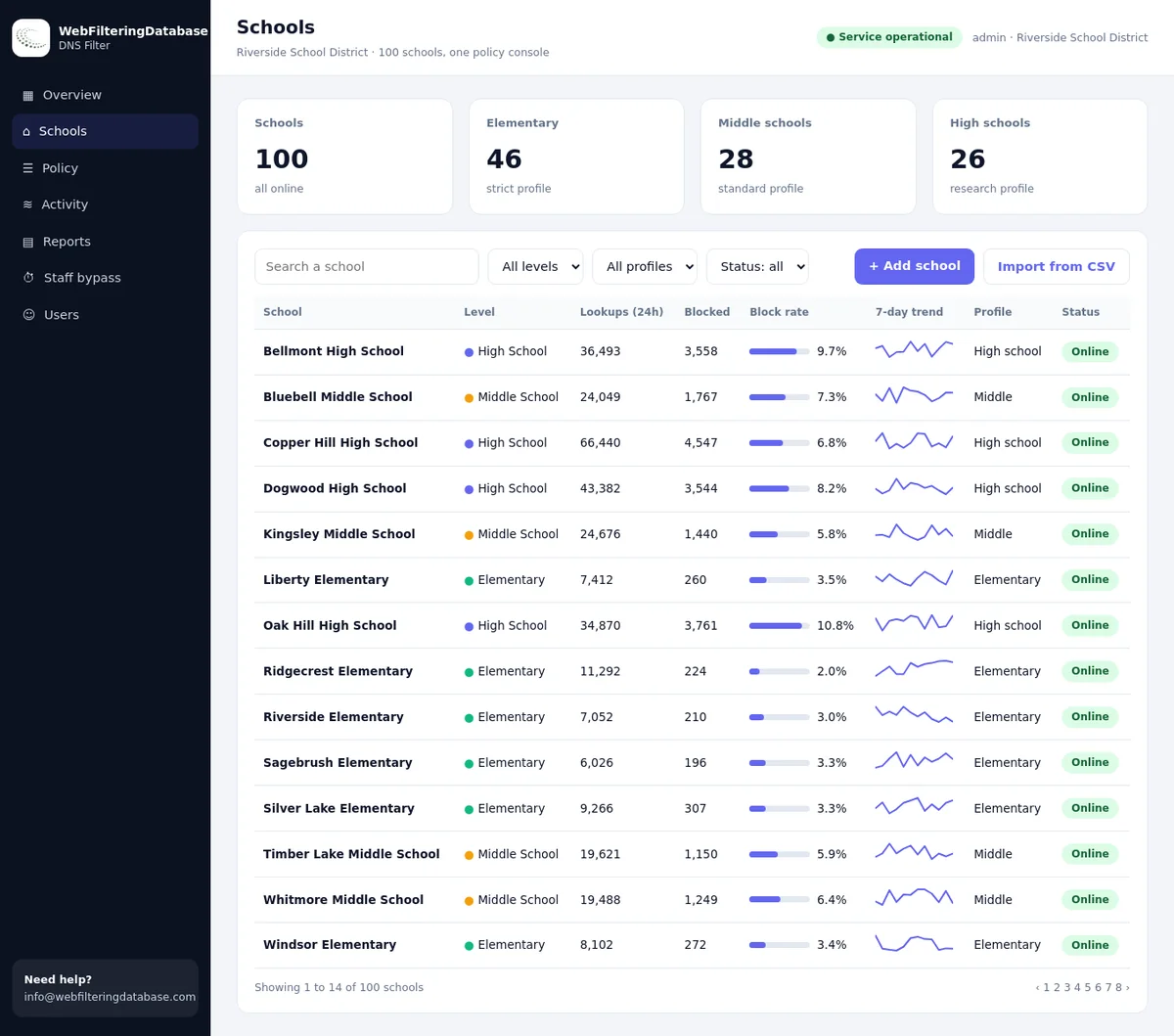
Our managed DNS filter puts every location's networks in one dashboard. Company-wide rules apply everywhere, each network type at each site gets its own profile, and local exceptions stay local, with nothing installed at the sites.
- One router change per location to join the policy.
- Profiles for staff, guest and back-office networks.
- Reports per site, by email, every month.
A policy in three layers
Separating what applies everywhere from what applies to one network type and what applies to one site keeps the policy short and the exceptions under control.
Company-wideSet by head office
- Safety categories blocked on every network: Adult, Illegal Drugs, Weapons, Hate/Discrimination
- Remote Access Tools blocked, except your IT provider's tool
- Company always-allow list: your own systems, payroll, ordering, suppliers used everywhere
Network typeSame at every site
- Staff: business rules, productivity categories open or scheduled
- Guest: VPN / Proxy and File Sharing blocked, everything else open
- Back office and payment devices: the strictest profile
Local exceptionsApproved per site
- An always-allow entry for a local supplier or council portal
- A different schedule where opening hours differ
- Recorded with who asked and why
Network types at a typical location
Most locations run two to four networks. Name them the same way at every site so the same profile can be applied everywhere.
| Network | Who uses it | Typical profile | Watch for |
|---|---|---|---|
| Staff | Employees' work devices | Company-wide rules plus productivity choices | Staff phones joining it with personal use |
| Guest | Customers, patients, visitors | Adult, VPN / Proxy and File Sharing blocked | A branded block page with the location's name |
| Back office | Manager PCs, payment and ordering systems | Strictest rules, business tools allowed | Card terminals often have their own network rules from the payment provider |
| Devices | TVs, music systems, cameras | Streaming as needed, everything risky blocked | Devices that ignore the network's DNS |
Guest networks across a chain are covered in depth in retail and restaurant customer Wi-Fi filtering.
Five services branch staff use daily, and how the rules treat them
Real rows from our data. None of these categories is a blocking switch, so the company-wide rules leave them open everywhere without an allow-list entry.
| Service | Categories in our data | Under the company-wide rules |
|---|---|---|
| yelp.com | Restaurants & Dining, Business | Open |
| ubereats.com | Food & Drink, Restaurants & Dining | Open |
| doordash.com | Food & Drink, Restaurants & Dining | Open |
| squareup.com | Business, Financial Services | Open |
| toasttab.com | Computers & Technology | Open |
Opening a new location: an eight-point checklist
With the policy defined centrally, a new site joins in an afternoon, often with only the local manager on site.
Name the networks the same way as at other sites: staff, guest, back office.
Register the site's addresses in the console, one network per range.
Apply the standard profiles to each network.
Point the router's DNS at the main and backup filter.
Send DNS only to the filter with the router steps from the dashboard.
Test from a phone on each network: one blocked site, one allowed.
Add local exceptions the manager requests, with a reason.
Add the manager to the monthly report for that site.
Reporting across locations
The value of a central filter shows up in the reports. Four views answer most questions from head office, without anyone at the sites having to collect figures by hand.
Per site
Blocked lookups by category for each location, sent to its manager by email every month.
Side by side
The same categories compared across sites; one site far above the rest is worth a call.
New sites
The first month of a new location, to confirm every network is reaching the filter.
Exceptions
The local allow entries per site, reviewed every quarter.
See monthly filtering reports for what each report contains.
How the managed filter keeps fifty sites on one policy
Company-wide always-allow and always-block lists apply to every network at once, while each network can carry its own entries and profile. A change at head office takes effect at every location in seconds, with no router to touch at the sites.
Franchises: who owns which part
In a franchise, the brand and the location owner both have a stake in the network. Writing down the split avoids most arguments.
The franchisor usually owns
- Brand standards for guest Wi-Fi and its block page
- The company-wide safety categories
- The choice of filter and the master console
- Reports across the network of locations
The franchisee usually owns
- Local exceptions within the brand rules
- The staff network policy, within company-wide limits
- Telling local staff what is filtered
- The monthly report for their own site
Where staff data is recorded, each franchisee may have duties of its own under data protection law. Our guide to staff web filtering under EU and UK data law covers the principles.
Locations without an IT person
Most branches have nobody technical on site, and the manager has a shop, a clinic or a kitchen to run. Three habits keep those locations filtered anyway.
Lock the router
A router admin password held centrally stops well-meant changes to the DNS setting.
Cover travelling laptops
Area managers move between sites and homes; a private encrypted link keeps their rules with them. See filtering devices away from the network.
One number to call
The block page shows who to contact, so the local manager never has to guess.
What different kinds of chain usually need
The three-layer policy fits every chain; what changes is the weight on each network. Six common cases:
| Kind of business | Main concern | Typical choice |
|---|---|---|
| Restaurant and cafe groups | Customer Wi-Fi under the brand name | Strong guest profile, light staff rules, ordering and delivery apps open |
| Retail chains | Tills and back-office PCs next to customer Wi-Fi | Strict back-office profile, branded guest block page |
| Clinic and dental groups | Patient data on staff devices, patient Wi-Fi in waiting rooms | Security-first staff profile, separate patient network |
| Car dealerships | Showroom Wi-Fi and sales staff who need many websites | Open staff profile with safety categories, guest profile for the showroom |
| Gyms and leisure sites | Members' phones and screens on the floor | Guest profile for members, device profile for screens |
| Professional firms with branches | Client confidentiality and remote staff | Business profile, encrypted link for laptops off site |
Moving a chain off per-site filters
Most chains already have some filtering at some sites. Moving to one console works best in waves.
1. Inventory
List each site's networks, current filter and contract end date.
2. Two pilot sites
One easy site and one difficult one, to find problems early.
3. Waves by contract date
Move sites as their old subscriptions end, so nothing is paid twice.
4. Bring the lists
Import each site's existing allow and block entries, then trim them to the company-wide list.
The import tool reads lists exported from most old filters; see importing allow and block lists.
Filtering location by location, or every site from one managed console
The same chain of locations, two ways.
| Task | Each site on its own | Managed DNS filter, one console |
|---|---|---|
| Changing a rule everywhere | Visit or call every site | One change, applied in seconds to all |
| Opening a new site | Set up a filter from scratch | Register networks, apply profiles, set the router |
| Local exceptions | Whatever the site decided | Entries per network, recorded and reviewable |
| Knowing what each site blocks | Ask each manager | Reports per site and side by side |
| Billing | Many small subscriptions | One quote priced by the number of sites |
Multi-location web filtering: frequently asked questions
How do multi-location businesses manage web filtering?
With a central policy applied to every location from one console, separate rules for each type of network at a site, and a small number of local exceptions. A hosted DNS filter does this without equipment at each site.
Do we need hardware at every location?
Not for DNS filtering. Each location's router points its DNS at the filter, and the rules are managed centrally. Firewalls that inspect traffic page by page are a different, heavier choice.
Can one location have different rules from the others?
Yes. Each network at each location can carry its own profile, and always-allow or always-block entries can be added for one network only, while company-wide rules stay the same everywhere.
How do we add a new location?
Register the new site's networks in the console, choose the profiles, point the router's DNS at the filter, and test from a device on each network. It takes about as long as setting up the router itself.
How are multi-location web filters priced?
Usually per user, per device or per location. Our managed DNS filter is priced by the number of sites, with one quote and one console for all of them; see web filter pricing models for a comparison.
Can a franchisee see other locations' reports?
No, if you set it up that way. Logins can be limited, so a franchisee or site manager sees only their own location, while head office sees every site.
What happens at a site whose internet goes down?
Nothing changes in the filter. When the connection returns, the site's devices reach the main or backup filter again with the same rules, and no setting needs to be redone at the location.
Who decides the rules in a franchise?
Usually the franchisor sets brand-wide rules, such as for guest Wi-Fi, and franchisees add local exceptions within them. Write down who owns which part, and who receives the reports.
Several locations on the managed DNS filter share one quote, priced by the number of sites, and a single site starts at $99 a month. A pilot at two locations shows the central policy and the per-site reports before the rest of the chain joins.
One policy for every location you run
Tell us how many locations you have and which networks each runs. We will send one quote and set up a pilot at two sites.