The AI tools setting, step by step
This guide is for the person who runs the filter at a library or school: usually the IT contact, a branch manager or a systems librarian. It walks through every AI control in your filter dashboard in the order you will use them, with a screenshot for each step.
Set aside about fifteen minutes for the first pass. After that, a short look at the AI tools report once a week is enough.
What this guide covers
Jump to the step you need. Each one stands on its own, so you can come back to a single step later.
Your dashboard login
The username and password we gave you when the filter was set up.
Your network list
Which networks you have, for example staff Wi-Fi, public Wi-Fi and children's PCs.
Your policy
What your board or AUP says about AI for children, students and adults.
A test device
One device on each network, so you can check a change right after saving it.
1Sign in to the dashboard
All AI controls live in the filter dashboard. You reach it from your account on this website or from a bookmark.
- Open www.webfilteringdatabase.com/login/ and sign in with your website account. Your library or school profile opens with the setup check and your router settings.
- Click Filter dashboard. The dashboard sign-in page opens in a new tab at app.webfilteringdatabase.com.
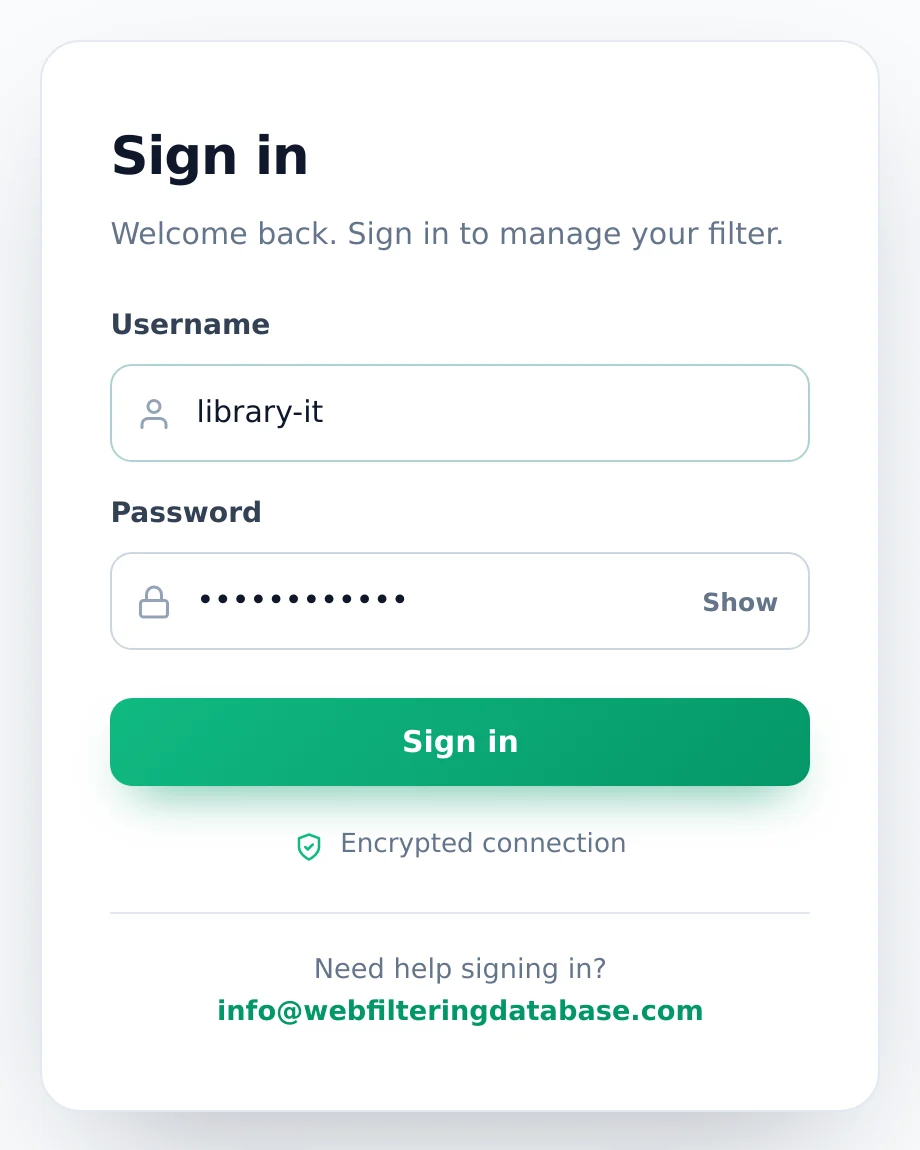
- Type the dashboard username and password. Click Show if you want to check what you typed.
- Click Sign in. The Overview opens, and the menu on the left takes you to every other page.
- Bookmark the dashboard page so you can skip the first two steps next time.
2Read the Overview
The Overview tells you in ten seconds whether the filter is working. It is the right first stop after signing in, even if you came for the AI settings.
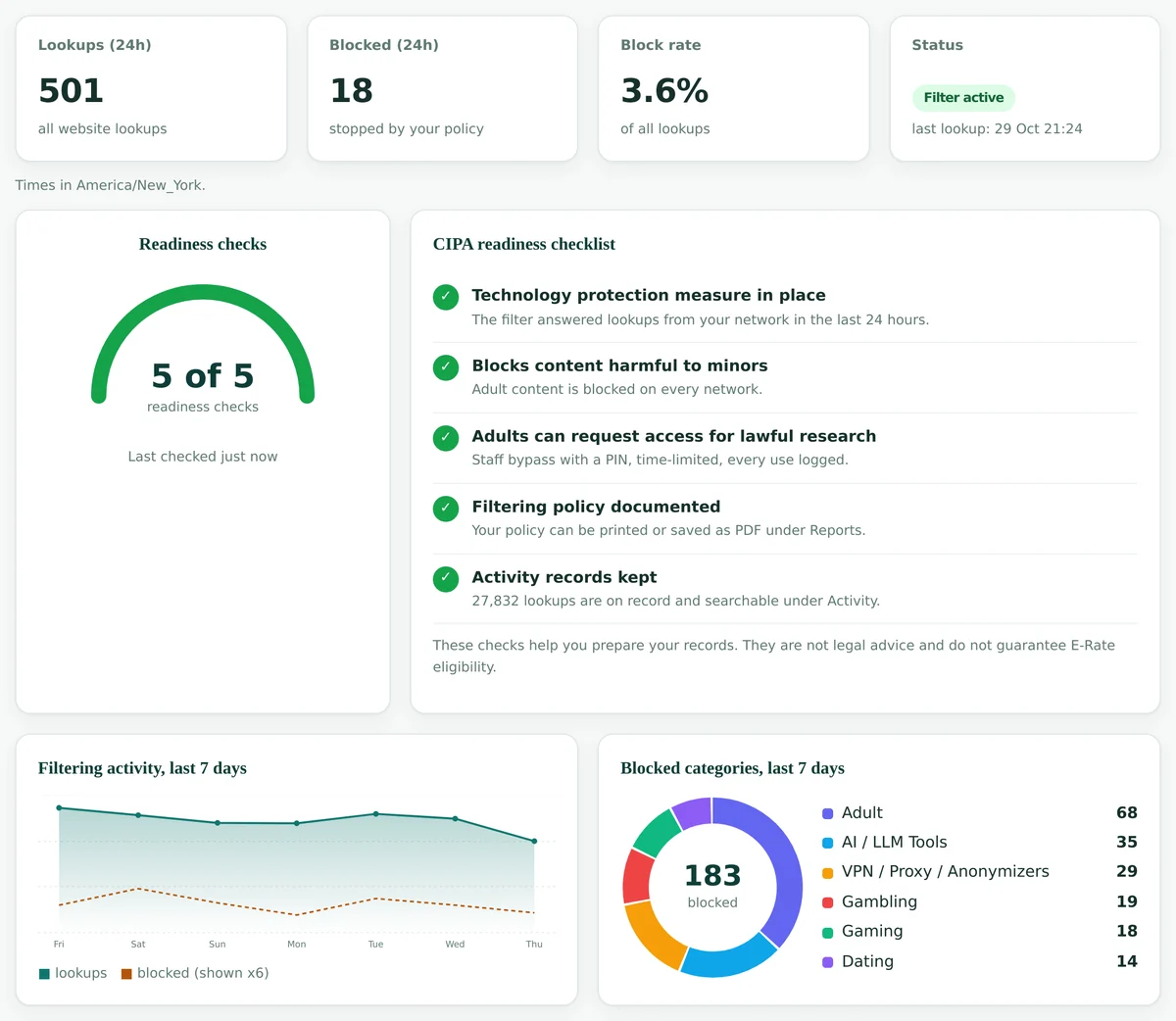
Top row
Lookups and blocks in the last 24 hours, the block rate, and the status with the time of the last lookup. Filter active means your networks are reaching the filter.
Readiness checks
Five checks for your records: filtering in place, adult content blocked, an adult access process, a documented policy and kept activity records.
Blocked categories
The share of blocks per category over seven days. A large AI / LLM Tools slice means your AI setting is doing real work.
The menu on the left has the pages this guide uses: Policy for the AI setting of each profile, AI tools for the report of AI use, Networks to see which profile each network follows, Staff bypass, Reports and Settings for the block page and the monthly email.
3Find out which profile each network uses
The AI setting belongs to a profile, not to a network. Each network follows exactly one profile, and several networks can share the same profile.
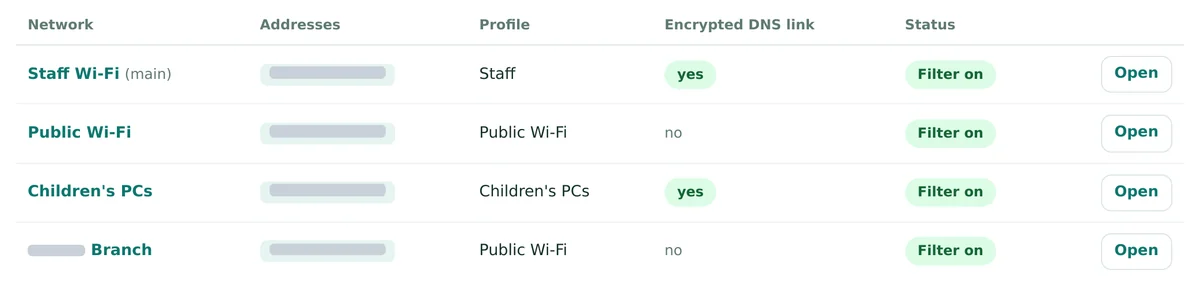
- Click Networks in the menu. The table lists every network with its addresses, its Profile, its encrypted DNS link and its status.
- Note which networks share a profile. In the sample below, Public Wi-Fi and a branch network both use the Public Wi-Fi profile, so one AI choice covers both.
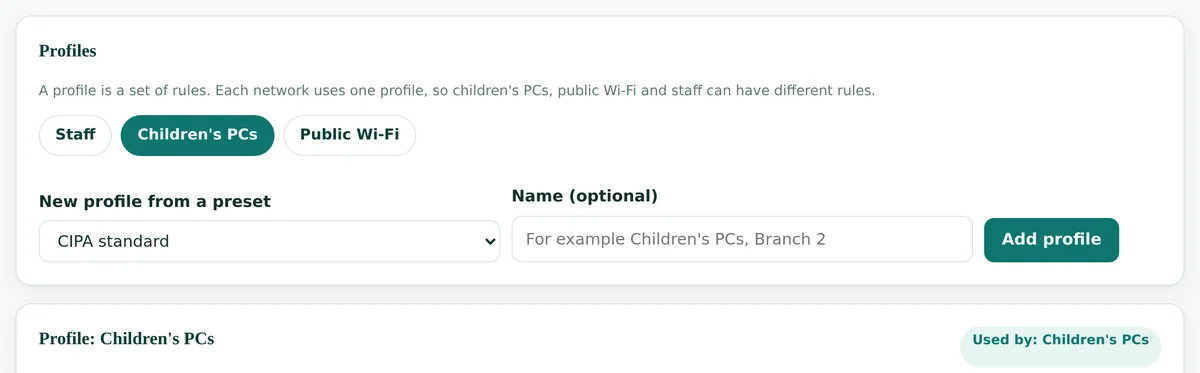
- Click Policy. The Profiles card at the top shows one button per profile. Click the profile you want to work on.
- Check the Used by label next to the profile name. It lists every network that will follow the changes you make below it.
4Choose the AI setting for each profile
Every profile has an AI tools card: Off, Block all AI, and three ready profiles for students, children and adults. Each choice shows how many tools it would block, list for review and allow, so you see the effect before you save.
- On the Policy page, click the profile you want to change.
- Scroll past the blocked categories to the AI tools card.
- Read the counts under each choice, then click the one that matches your policy for the people on that network.
- Scroll down and click Save profile. The AI card is part of the profile form, so nothing changes until you save.
- On a device on that network, open a tool that should now be blocked, in a new tab. Expect the change within a few seconds; a browser that visited the site just before may need about a minute.
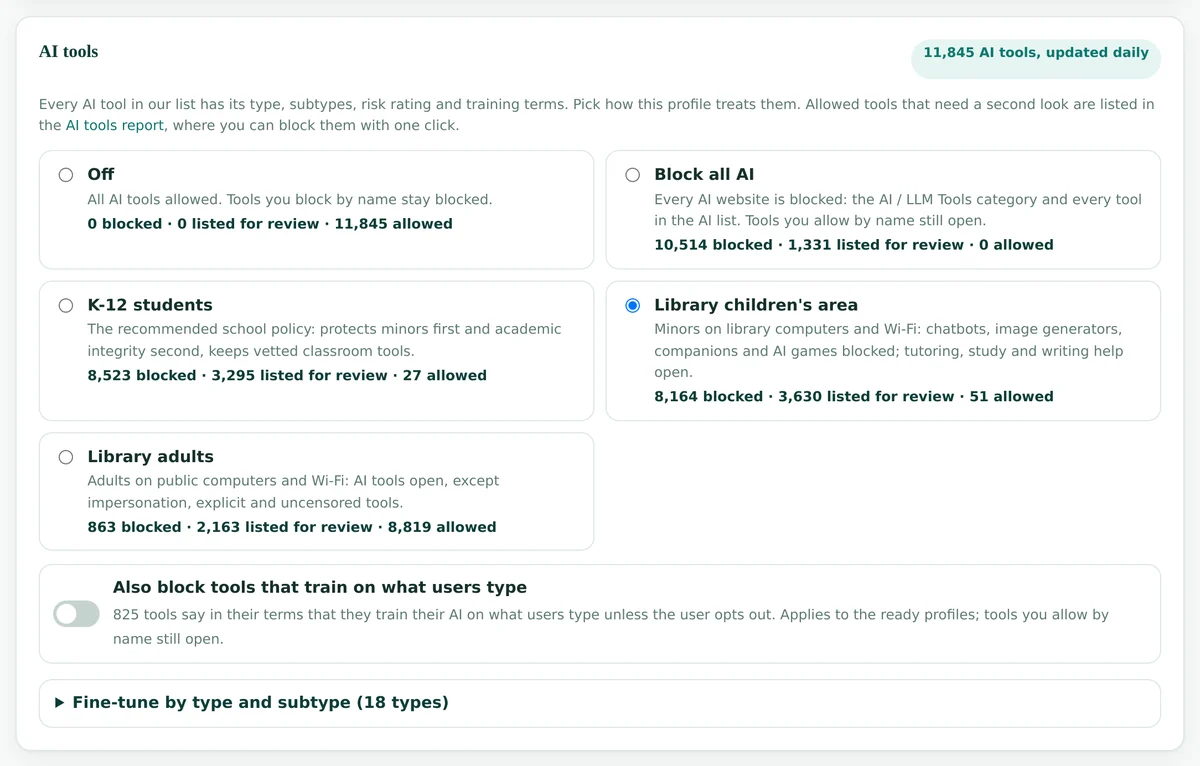
What each choice blocks
| Choice | Made for | Blocked | Not blocked |
|---|---|---|---|
| Off | Staff networks and offices where AI use is a staff matter | Nothing by the AI setting. Tools you block by name stay blocked. | Every AI tool |
| Block all AI | Testing rooms, exam labs, kiosks | Every AI website: the AI / LLM Tools category and every tool in the list | Tools you allow by name. Ordinary apps with AI features, such as office and grammar apps, are listed for review instead of blocked. |
| K-12 students | Student networks and school devices | General chatbots, essay writing and paraphrasing tools, image generators, AI companions, AI games and most business tools | Tutors, study and quiz tools, language learning, text to speech, transcription and coding help, all listed for review; mind-mapping and AI-content detectors stay open. Tools that train on what users type are treated more strictly. |
| Library children's area | Children's PCs and the children's Wi-Fi of a library | Chatbots, image generators, companions and AI games, as for K-12 | Tutoring and study tools, plus writing help, which K-12 blocks; all listed for review. Translation tools are open. |
| Library adults | Public PCs and public Wi-Fi used by adults | Impersonation tools such as face swap and voice cloning, explicit and uncensored tools | Almost everything else; AI companions and tools that disguise AI-written text are listed for review |
Typical choices by network
Children's PCs
Library children's area. Add the training switch (step 5) for the youngest users.
Public Wi-Fi and adult PCs
Library adults. Adults keep chatbots, translation and writing tools for job searches and forms.
Student network
K-12 students. It keeps vetted classroom tools open and lists the borderline ones.
Staff Wi-Fi
Off or Library adults. Block single tools by name if your AI policy names them.
Testing room
Block all AI, with the one or two tools the test needs allowed by name.
Exam hours only
Keep the profile setting and add the AI / LLM Tools category to a time schedule for those hours.
5Block tools that train on what users type
Below the choices is one switch: Also block tools that train on what users type. It is the quickest way to keep what children, students or patrons type out of AI training.
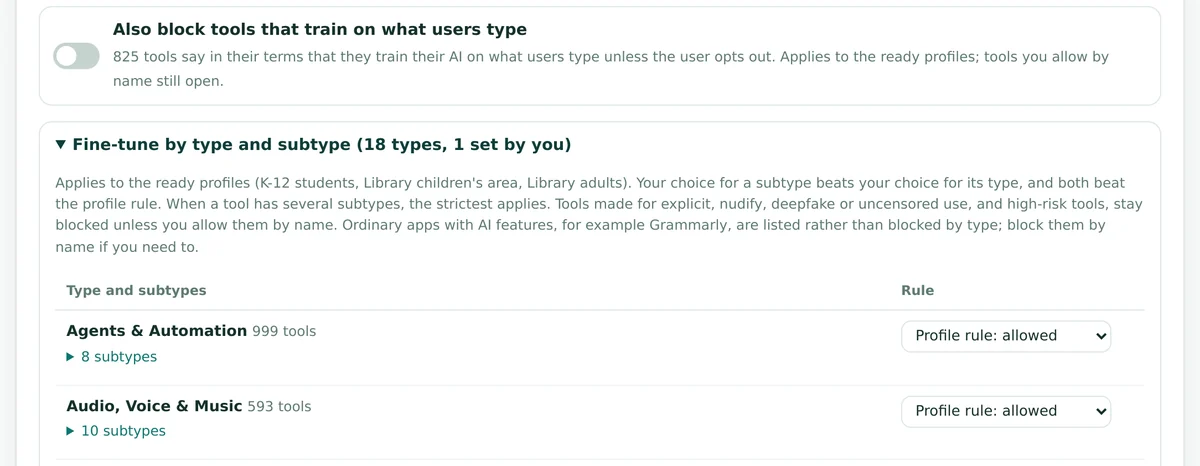
How to switch it on
- Open the profile on the Policy page.
- In the AI tools card, click the switch so it turns on.
- Click Save profile at the bottom of the form.
- Open the AI tools report a day later and check that no tool your staff rely on is now blocked.
What it does and does not do
- Blocks the tools whose terms say they train their AI on what users type, including those that do so unless the user opts out.
- Works on top of the three ready profiles. It has no effect when the setting is Off or Block all AI.
- A tool you allow by name still opens, so one approved tool can stay in use.
- Ordinary apps with AI features are not blocked by this switch; block them by name if needed.
6Fine-tune by type and subtype
A ready profile is a starting point. When your policy differs on one kind of tool, change that type or subtype instead of switching to a stricter profile.
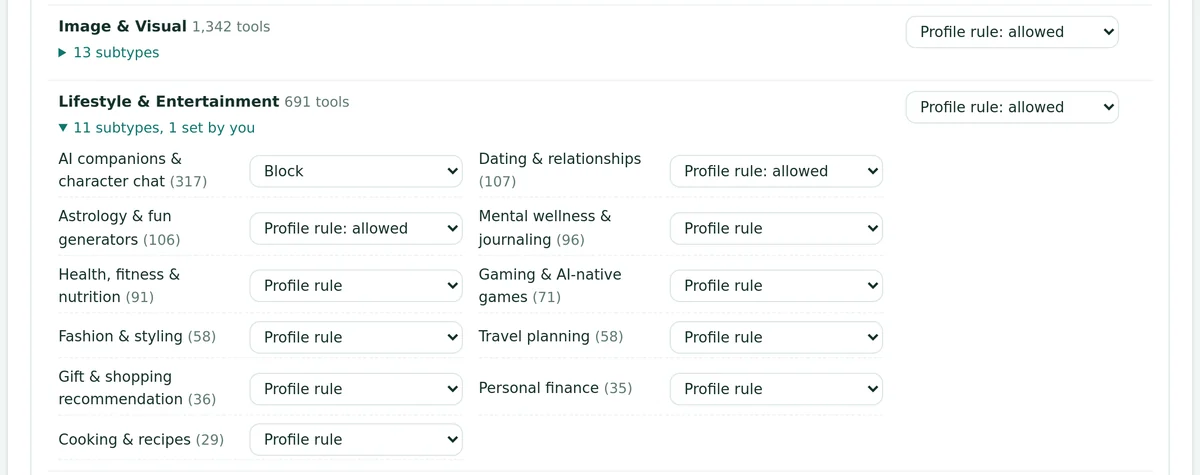
- In the AI tools card, click Fine-tune by type and subtype. The table lists every type with the number of tools in it.
- The Rule menu on the right shows what the profile does now, for example Profile rule: allowed or Profile rule: listed.
- Pick Block, Allow, list for review or Allow to set your own rule for the whole type.
- For a finer choice, click the subtypes link under the type name and set a rule for one subtype only.
- Click Save profile. The heading then counts your own choices, for example 1 set by you.
Subtype beats type
Your choice for a subtype wins over your choice for its type, and both win over the profile rule.
Strictest subtype wins
A tool with several subtypes takes the strictest rule among them, so a block on one of its subtypes blocks it.
Some blocks stay
Explicit, nudify, deepfake, uncensored and high-risk tools stay blocked unless you allow them by name.
Examples from libraries and schools
| Profile | Policy wish | Change |
|---|---|---|
| Library adults | No AI companion apps on public PCs | Lifestyle & Entertainment, subtype AI companions & character chat: Block |
| Library children's area | Homework help with language apps | Education & Learning, subtype Language learning: Allow |
| Library adults | No tools that disguise AI-written text | Text & Language, subtype AI-text detection & humanizers: Block |
| K-12 students | Tutoring tools are approved by the district | Education & Learning, subtype AI tutors & personalized learning: Allow, so they leave the review list |
7Search one tool and allow or block it
When a teacher asks for one tool, or a patron complaint names one, you do not need to change a whole type. Each profile has its own list of tools allowed or blocked by name.
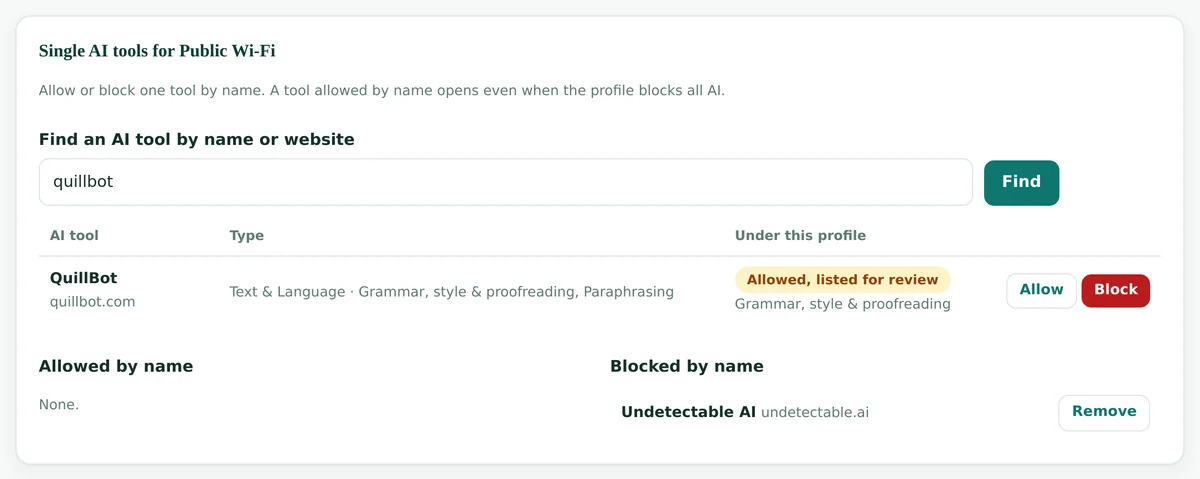
- On the Policy page, open the profile and scroll to Single AI tools below the profile form.
- Type at least two letters of the tool's name or website in Find an AI tool by name or website and click Find.
- Each result shows the tool's type and how this profile treats it now, with the reason, for example Allowed, listed for review.
- Click Allow or Block. The tool moves to Allowed by name or Blocked by name at once; there is no separate save.
- To undo, click Remove next to the tool. It then follows the profile's AI setting again.
Allowed by name
Opens even when the profile is set to Block all AI and even when the training switch would block it. Use it for the tools your policy approves.
Blocked by name
Stays blocked whatever the setting, including Off. Each profile can hold up to 500 tools by name in total.
8Use the AI tools used report
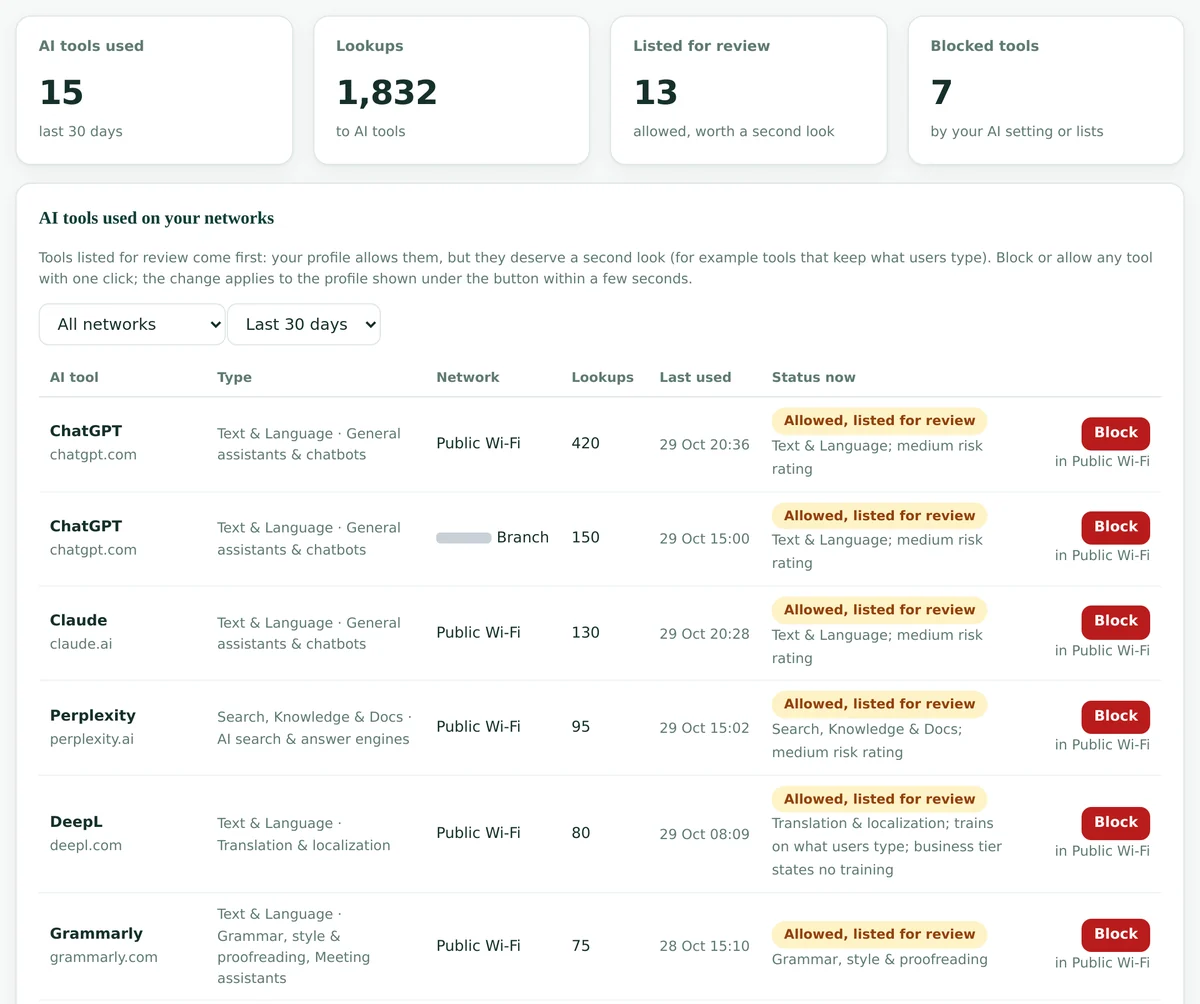
The report shows which AI tools people actually used on your networks, and what the filter does with each of them now. It is where most of your weekly AI work happens.
- Click AI tools in the menu.
- Read the four tiles: AI tools used, Lookups to AI tools, tools Listed for review and Blocked tools.
- Use the two menus above the table to pick one network or all networks, and the last 7, 30 or 90 days.
- Work down the table. Tools listed for review come first, then allowed tools, then blocked ones, each group sorted by lookups.
Columns
Tool and website, type and subtypes, the network, lookups, last use in your time zone, and the status now.
Status reason
Under each status is the reason, for example a medium risk rating, training on what users type, or Blocked by name.
Status now
The status reflects today's settings, so a tool you blocked yesterday shows as blocked even on older rows.
9Block a tool straight from a report row
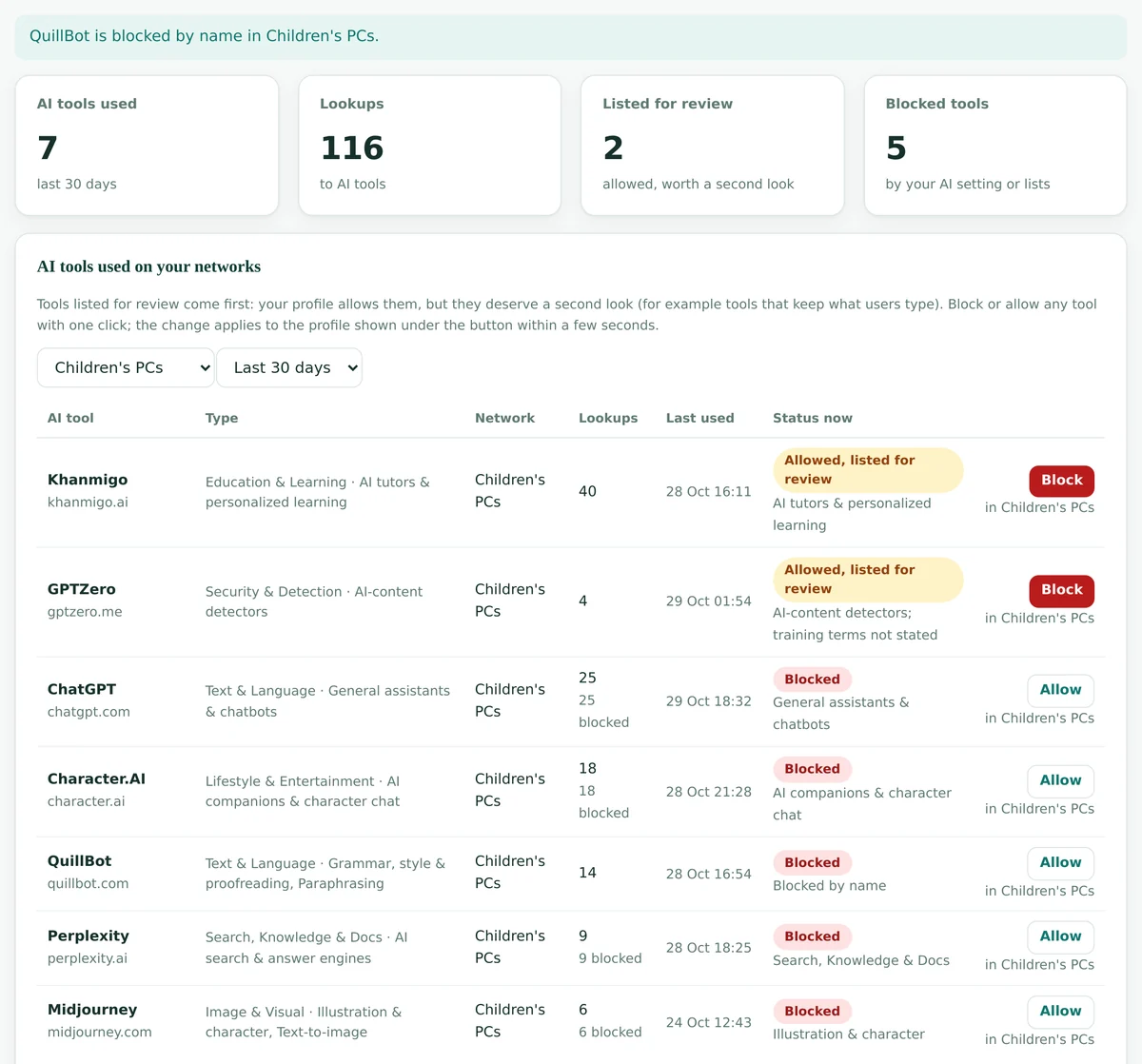
Every row ends with a button: Block for allowed tools, Allow for blocked ones. Under the button is the profile it changes.
- Find the tool in the report and read the profile name under its button, for example in Children's PCs.
- Click Block. A message at the top confirms the change, for example QuillBot is blocked by name in Children's PCs.
- The row moves to the blocked group with the reason Blocked by name, and its button turns into Allow.
- Changed your mind? Click Allow on the same row, or click Remove under Single AI tools on the Policy page.
A five-minute weekly review
- Set the period to the last 7 days and the network to all networks.
- Read the tools listed for review at the top of the table.
- Block the ones your policy does not cover, starting with the most used.
- For the ones you keep, note the decision so colleagues know it was deliberate.
- Check the blocked group for a tool staff asked for, and allow it by name if approved.
- Switch the network menu to the children's network and repeat the first two checks.
10What users see when a tool is blocked
A blocked AI tool does not open. Where the browser can show it, people see your block page with the site, the reason and your contact details.
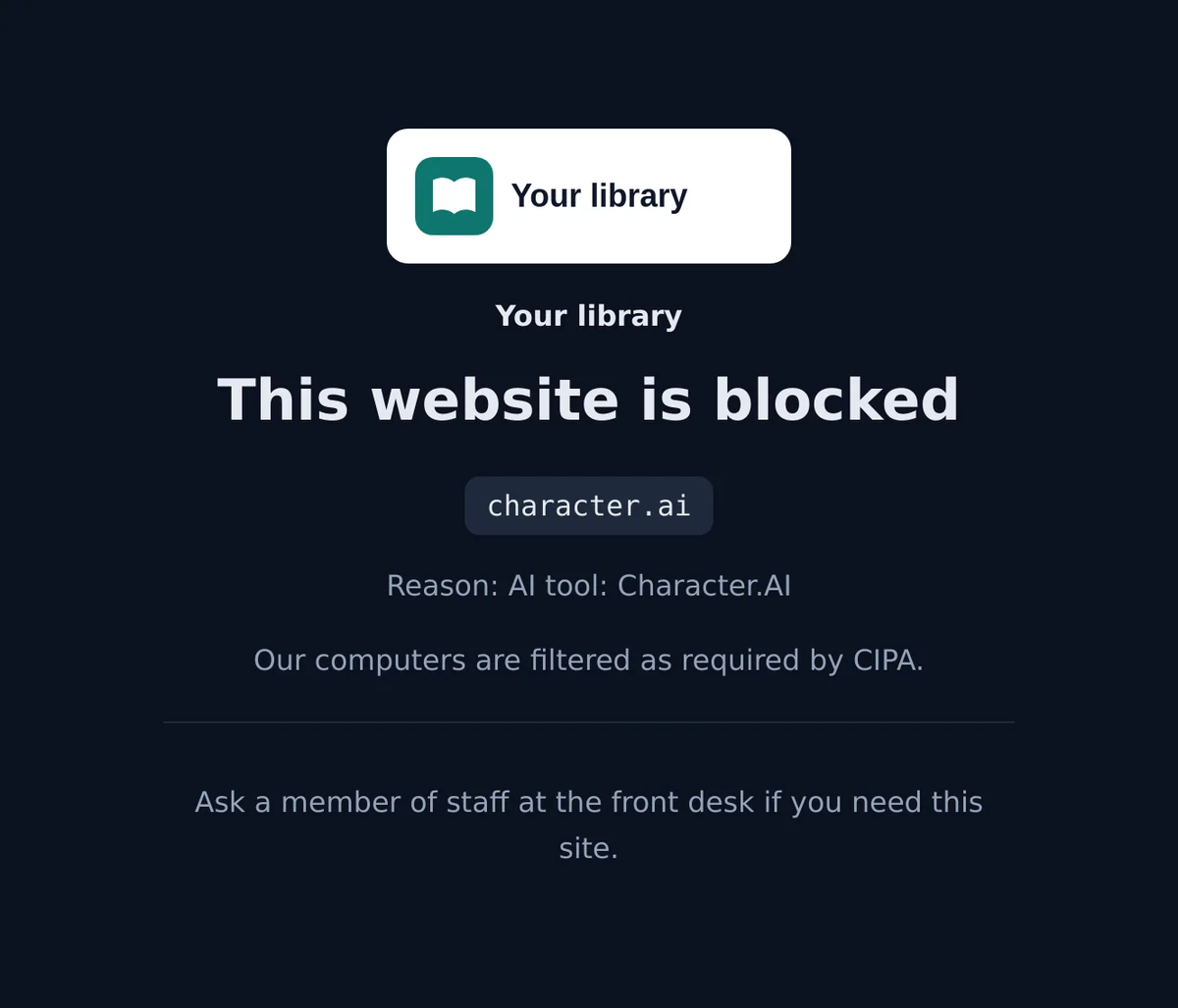
The page shows your name and logo, the blocked site, the reason (for a tool blocked by the AI setting it reads AI tool: and the tool's name), your message, and how to reach you. You set all of it under Settings, card Block page, where Open a preview shows the result.
| Situation | What the person sees |
|---|---|
| Plain http site | Your block page straight away |
| Most https sites | A browser security warning first; your block page after continuing, where the browser allows it |
| Well-known https sites | Only the browser warning; the site stays blocked |
More options for the page itself are in the guide to the branded block page.
11The staff bypass and AI tools
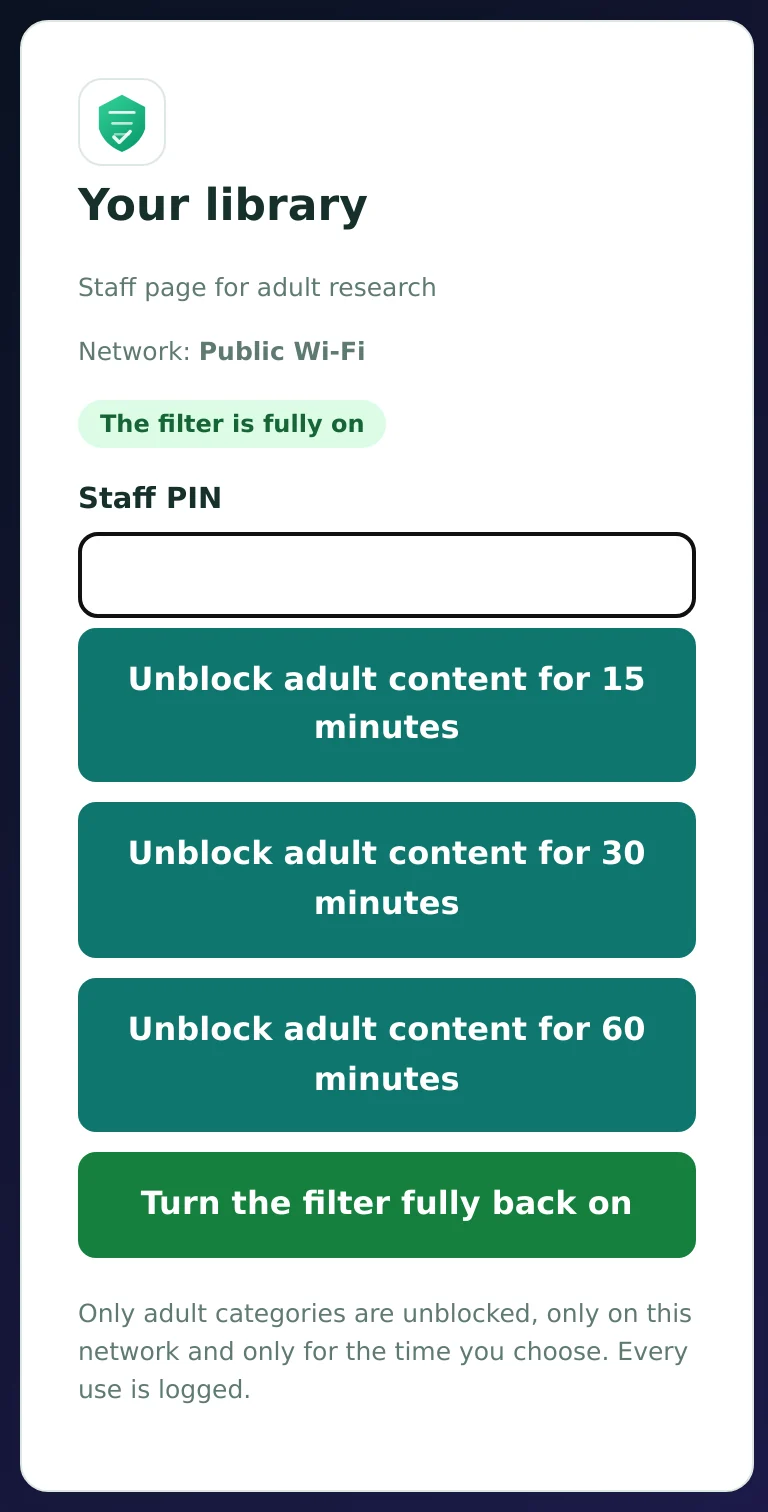
The staff bypass is for adult research on blocked adult content. It does not change AI rules, and that is on purpose: a patron's research request should never open every AI tool on the network.
Starting a bypass
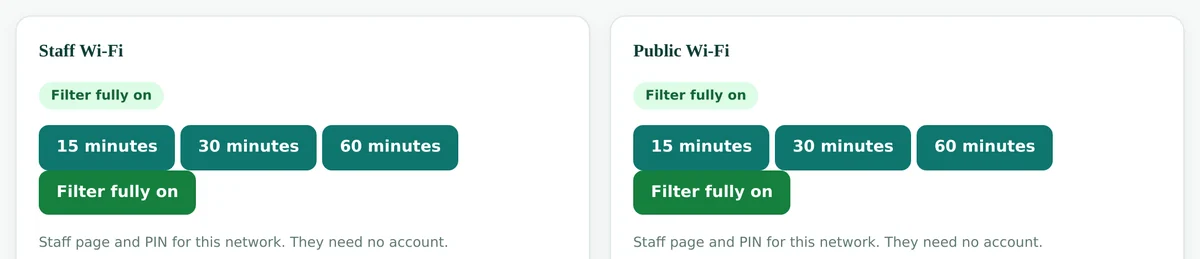
- At the desk, staff open the network's staff page on a phone or PC. It needs no dashboard login, only the PIN.
- They enter the Staff PIN and choose 15, 30 or 60 minutes.
- Adult categories open on that one network for the time chosen. Turn the filter fully back on ends it early.
- From the dashboard, the Staff bypass page does the same with one card per network, and shows each network's staff page link and PIN.
AI blocks stay on
During a bypass, every AI tool keeps the status its AI setting gives it. In the ready profiles that includes the block on explicit and deepfake tools.
An adult needs one AI tool
Someone with a dashboard login allows that tool by name on the profile (step 7), then removes it when the work is done.
Every bypass is logged
Start, length and early end appear under Activity, in the bypass CSV and in the monthly report.
The full desk procedure is in the guide to the staff bypass PIN.
12AI in the monthly report
On the first day of each month we email last month's activity report to the addresses you choose. It has a section on AI use that directors and boards tend to read first.
- Under Settings, card Monthly report email, enter the addresses, separated by commas, and click Save recipients.
- To open a report yourself, click Reports, choose the month and one network or all networks, and click Open report.
- Scroll to AI tools used. It says how many AI tools were used that month and how many of them are allowed but listed for review.
- Use Print or save as PDF for your records, or Download CSV for a spreadsheet. The CSV has the same AI tool rows.
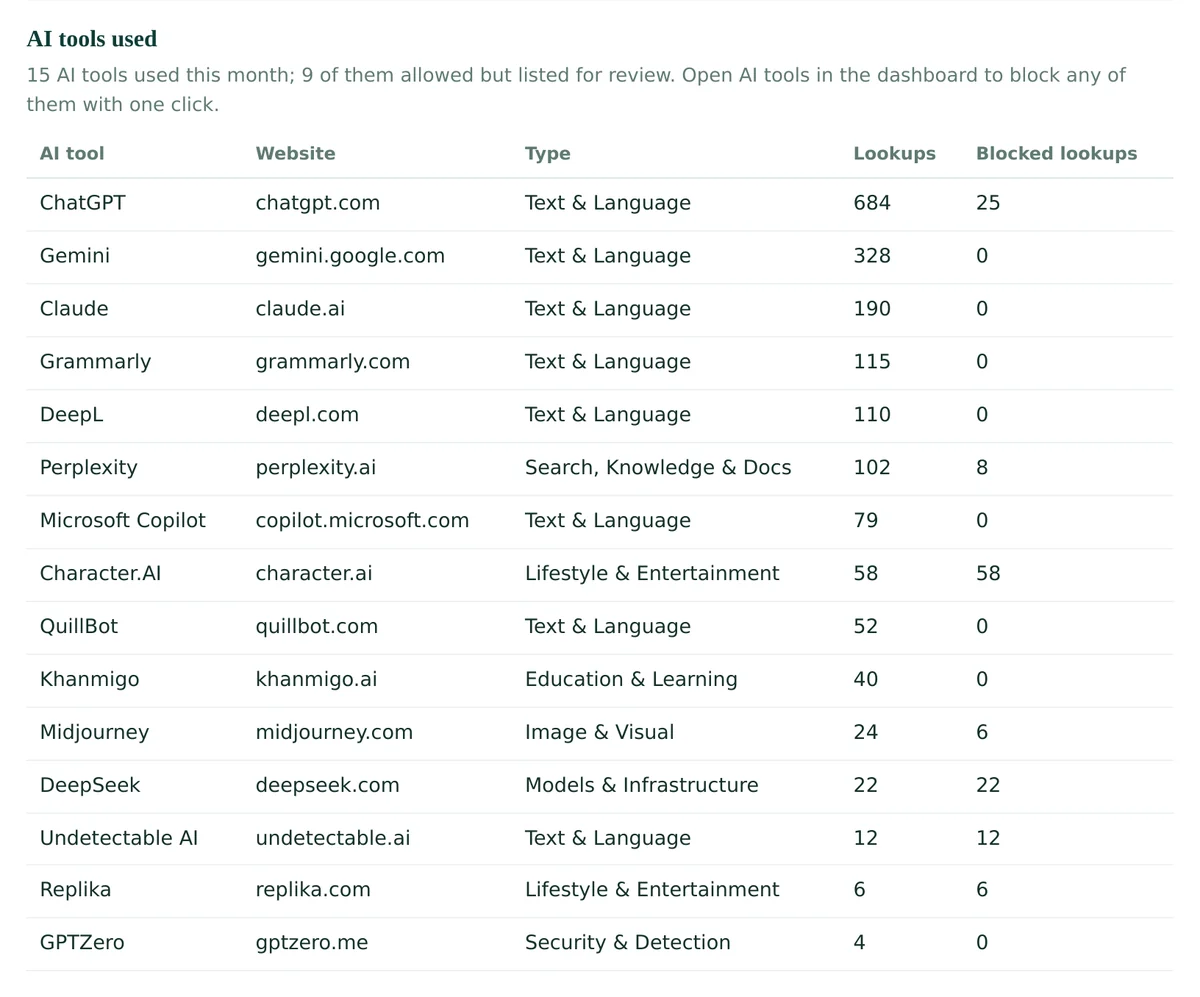
The most used tools
Up to fifteen tools, with website, type, lookups and how many of those lookups were blocked.
Evidence for your policy
Blocked lookups show the AI setting at work; allowed tools show what people rely on.
Per network
Each network gets its own report too, so the children's area can be shown on its own.
A first-day checklist
If you only have a few minutes today, these steps give every network a sensible AI setting.
- Check on the Overview that the filter status is active.
- Note on the Networks page which profile each network uses.
- Set the children's profile to Library children's area and save.
- Set the public profile to Library adults, or K-12 students for a school, and save.
- Decide on the training switch for the children's and student profiles.
- Allow by name the tools your policy approves for each audience.
- Check the block page text under Settings and open the preview.
- Add the director's address to the monthly report email.
Questions
How fast does a change to the AI setting take effect?
Within a few seconds of saving. A browser that already looked up a site may keep the old answer for about a minute, so test in a fresh tab or wait a moment.
Does the staff bypass open AI tools?
No. The staff bypass opens adult categories only. AI tools follow the AI setting of the profile the whole time. To open one AI tool for an adult, allow it by name on that profile in the dashboard.
Can we allow one AI tool when all AI is blocked?
Yes. Search the tool under Single AI tools on the Policy page and click Allow. A tool allowed by name opens even when the profile is set to Block all AI.
Why is a tool listed for review but not blocked?
Listed for review means the profile allows the tool, but it deserves a second look, for example because it keeps what users type. It appears first in the AI tools report, where you can block it with one click.
What happens when a new AI tool appears?
The AI tools list is updated every day. New tools get a type and subtypes and follow your profile rules from the day they are added.
Does a block from the AI tools report affect only one network?
It applies to the profile named under the button, so every network that uses that profile follows it. Give a network its own profile if it needs different AI rules.
Do patrons see why an AI tool is blocked?
On sites where the browser shows it, your block page names the site and the reason, for example AI tool: Character.AI. Most AI sites use HTTPS, so many browsers show a security warning first or only a warning.
Is AI use included in the monthly report?
Yes. The monthly activity report has an AI tools used section with the most used tools, their type, lookups and blocked lookups, and the CSV download includes the same rows.
What if I forget my dashboard password?
Write to [email protected] from your work address and we will set a new one. For your security, the sign-in page also pauses for a few minutes after several wrong passwords in a row.
Related guides
Questions about your AI setting?
Write to [email protected] or use the contact form. Tell us the network and the tool, and we reply the same day.